Keep the design your school already approved
I Already Have a Report Card Format in Word. Can I Fill It Automatically for an Entire Class?
You probably do not need to redesign the report card. If the school already has an approved Word format, keep the logo, headings, borders, subject labels, signature areas and other fixed content exactly where they are. Replace only the details that change from student to student with variables such as{{Student_Name}}and {{Roll_Number}}.
Put the corresponding prepared values in Excel, one student per row, and make the column headings match those variables. Upload the Excel or CSV file with the reusable Word template, validate the fields, preview difficult records and then generate a separate PDF for each student. The school still checks every mark, total, grade and remark before this process begins.
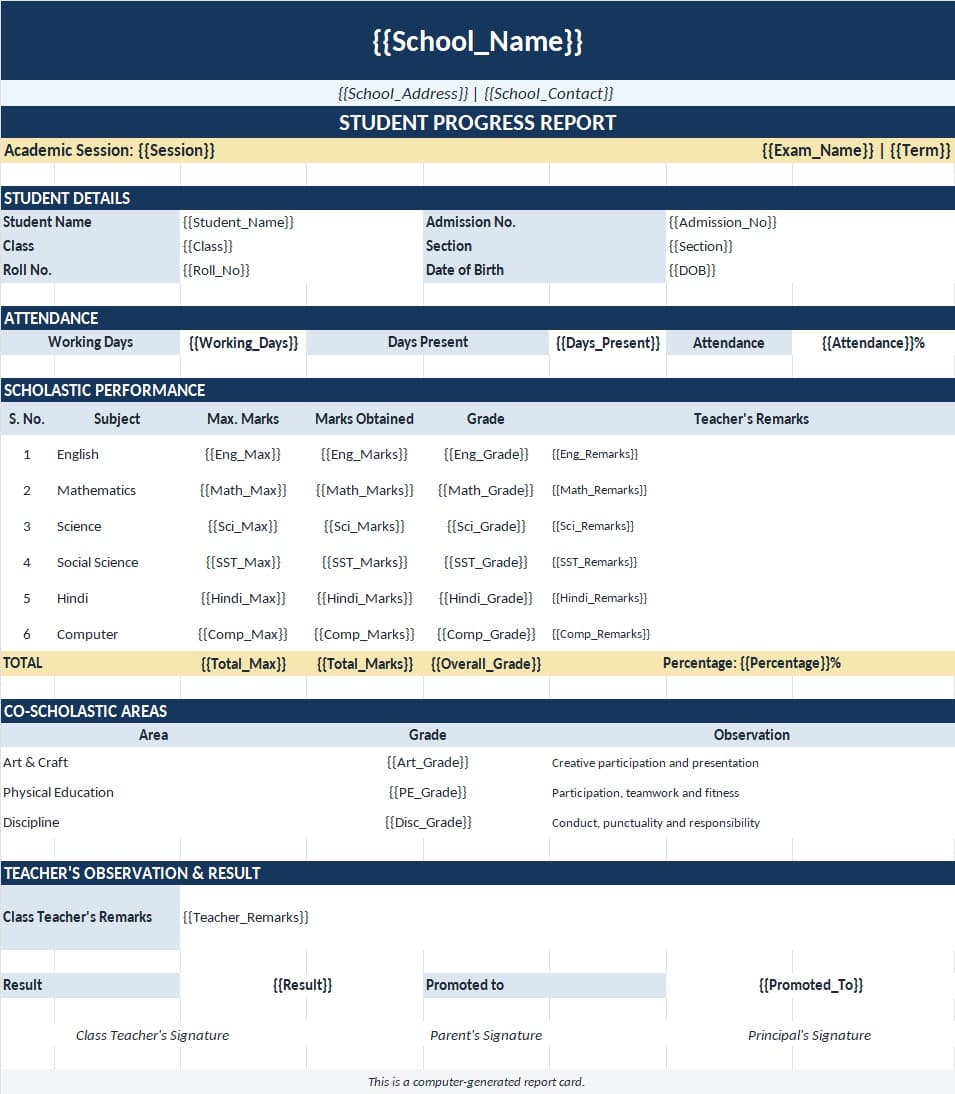
What stays unchanged in the Word document?
Think of the Word file as two layers. The first is the fixed school design. It normally includes the school identity, report title, subject names, explanatory notes, grading legend, signatures, page size, borders and colours. Those elements do not need to be replaced for every student.
The second layer contains student-specific content: a name, roll number, class, section, marks, percentage, grade and teacher remark. Those are the places where variables belong. Changing only this layer preserves the familiar report card that teachers, administrators, students and parents already recognise.
Keep as fixed content
School logo, school name when it is common to the batch, headings, subject labels, explanatory text, borders, signatures and approved design elements.
Replace with variables
Student identity, class, section, subject values, attendance, totals, percentages, grades, results and approved individual comments.
How do Excel headings connect to Word variables?
To fill a report card template from Excel reliably, use the same field name on both sides. An Excel heading called Student_Name connects to {{Student_Name}}in Word. A heading called Mathematics connects to{{Mathematics}}. The spelling, spaces and underscores must agree.
{{Student_Name}}{{Roll_Number}}{{Class}}{{Section}}{{Mathematics}}{{Science}}{{Percentage}}{{Grade}}{{Teacher_Remark}}These are examples, not a required field list. If the school uses Maths instead of Mathematics, either use Maths consistently or rename both sides through a controlled edit. Do not change only one and assume the system understands that the words are related.
Does every student need a separate Word file?
No. That is exactly the repeated work the reusable-template approach avoids. Prepare one approved Word document for the class or compatible group. The class spreadsheet supplies one row at a time, and the same template is filled with the values from that row to produce an individual PDF.
If different classes genuinely use different subjects, grading tables or page layouts, maintain separate approved templates and process the matching class files separately. A reusable template does not mean forcing incompatible curricula into one design.
What should I check when the variables are validated?
Validation tells you whether a template variable has a matching data column. That is an essential structural check, but it does not confirm that the marks or remarks are correct. A field can match perfectly and still contain an unapproved value in Excel.
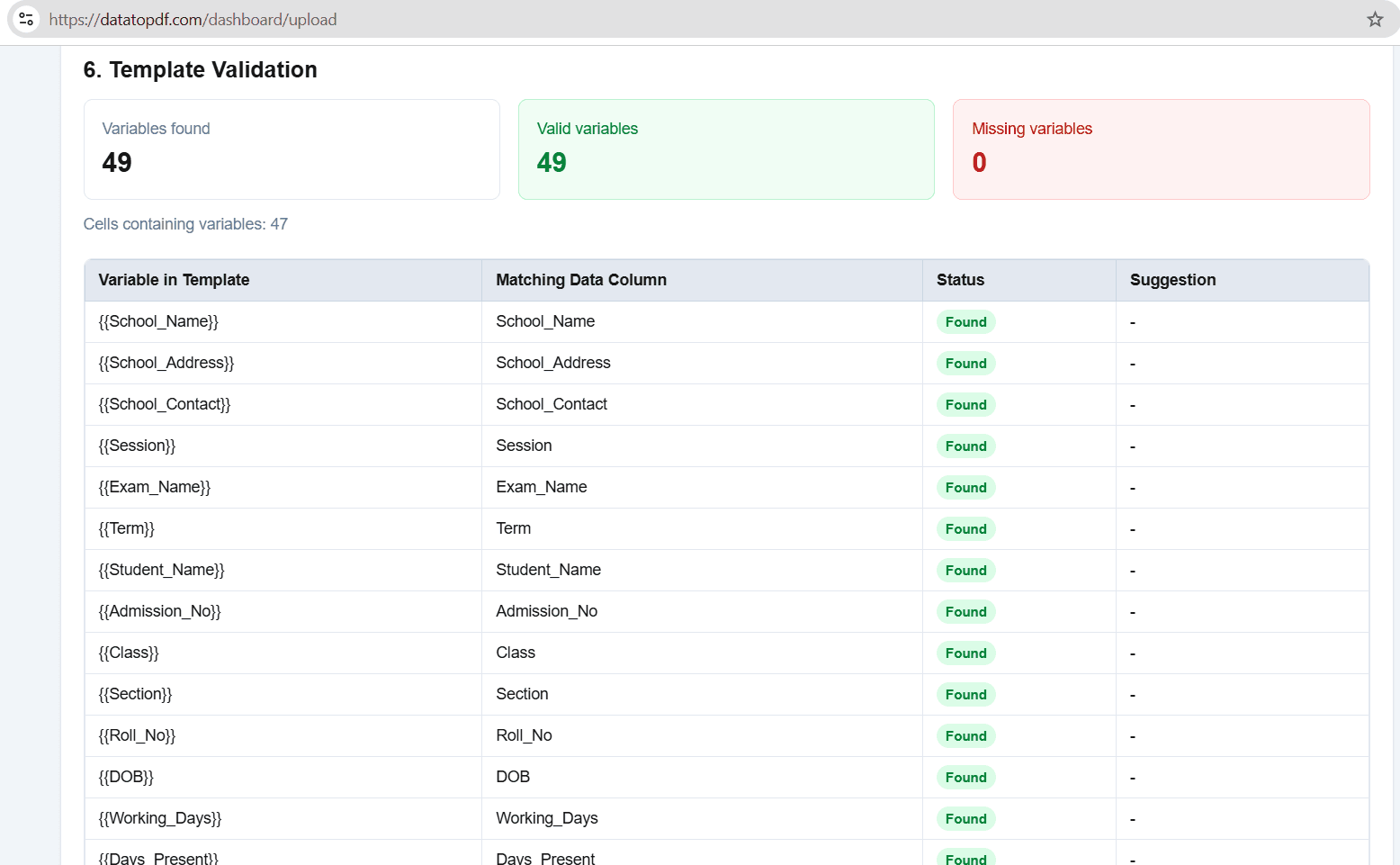
Read the match list from top to bottom. Watch for nearly identical names such as Teacher_Remark and Teacher_Remarks, or Roll_No and Roll_Number. Also confirm that fixed wording was not accidentally enclosed in braces. If the words “Class Teacher” should appear on every report, they should remain ordinary text rather than a variable unless the role itself changes by row.
Why can a Word table move after personalisation?
A template often looks perfect with short sample values. Real students introduce longer names, multi-line teacher remarks, attendance text and result descriptions. Word tables may expand when text wraps. A narrow cell may push a row taller, and a long remark can move signature content toward another page.
Test the design with realistic extremes rather than the most convenient student. Choose the longest student name, the longest approved remark, a two-digit and three-digit roll number, and any status such as “Eligible for re-assessment” that occupies more space than “Pass.” Adjust cell widths, paragraph spacing, font size or the available remark area in the template itself.
Pay extra attention to floating text boxes, manually positioned shapes, images, headers and footers. These can behave differently from ordinary table cells when content grows. A complex Word layout is not automatically unsuitable, but it needs realistic previews before the full class is generated.
Do not shorten an important academic remark merely to rescue a cramped design. The template should accommodate the school’s real content. Once revised, run the same difficult previews again.
How should blanks and missing marks be handled?
A missing mark
Find out whether it is an omission, an absence or a genuinely inapplicable subject. Enter only the school-approved display value.
A blank teacher remark
Confirm whether remarks are optional. DataToPDF will not compose a comment or infer one from performance.
An empty section
If the school does not use sections, remove that field from the design or approve how the empty space should appear.
Inconsistent headings
Standardise headings before upload. Student Name, Student_Name and student_name should not be treated casually as interchangeable.
A careful entire-class workflow
- 1. Save a working copy. Preserve the approved original Word format before adding variables.
- 2. Mark the changing fields. Identify only the values that differ by student.
- 3. Prepare final class data. Use one student per row and complete all academic checks outside DataToPDF.
- 4. Match every field. Make Word variables and Excel headings identical.
- 5. Validate and preview. Test long names, longer remarks, blanks and different result statuses.
- 6. Generate the class PDFs. Use suitable identity fields for filenames and reconcile the number of files.
- 7. Review before distribution. Check the finished PDFs through the school’s authorised process.
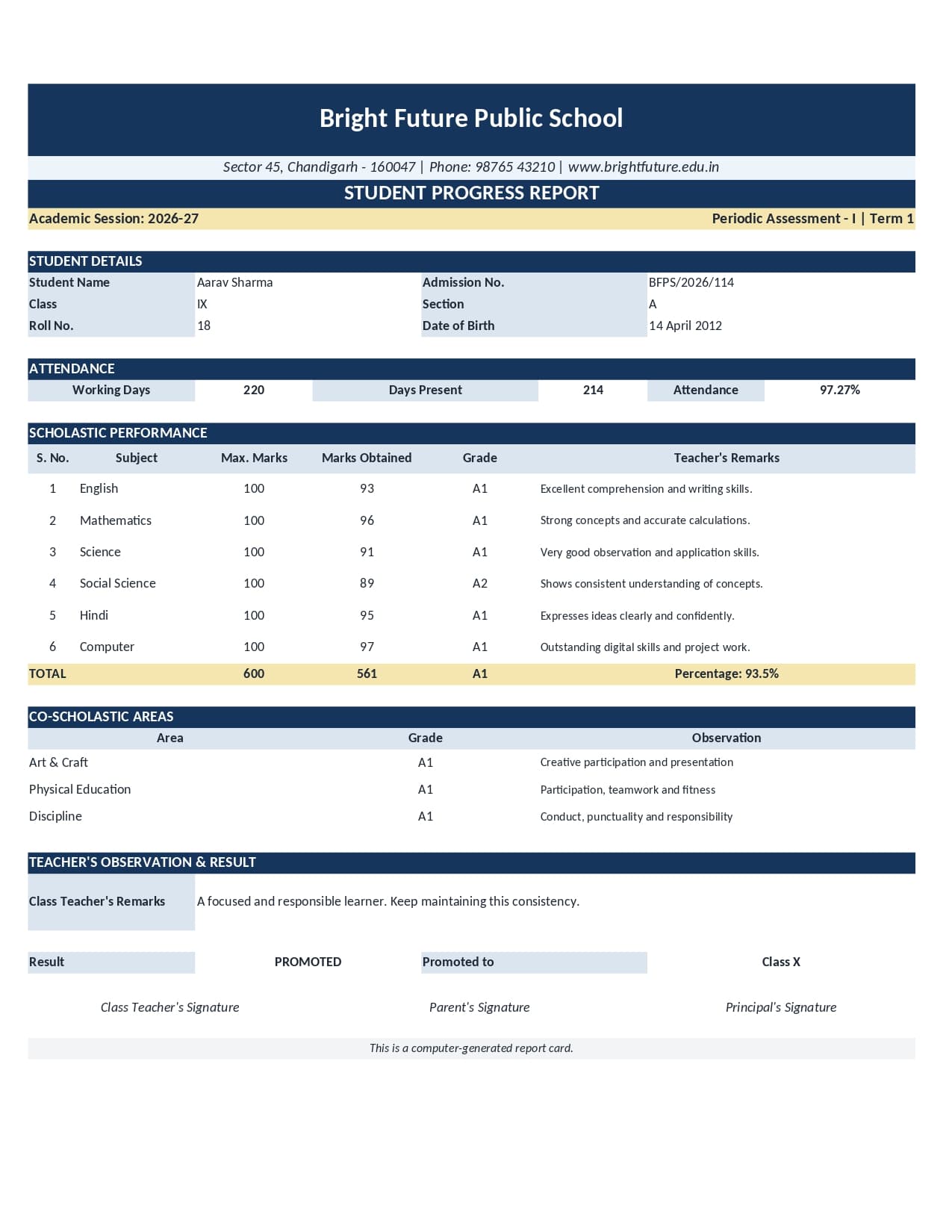
What does DataToPDF not do for the school?
DataToPDF takes user-prepared Excel or CSV data and a reusable Word or Excel template and generates personalised PDFs. It does not calculate marks or percentages, assign grades, decide pass or fail, evaluate students, write remarks, verify school records, maintain academic history or send report cards to parents.
The school remains responsible for names, roll numbers, marks, totals, percentages, grades, remarks, attendance, promotion status, teacher comments, school details and every other value. Reusing a Word design changes the document-production step; it does not transfer academic responsibility to the software.
Frequently asked questions
Do I have to redesign my report card?
Usually not. Keep the approved Word layout and fixed content, then replace only the student-specific values with variables that match the Excel headings.
Does every student need a separate Word document?
No. One reusable Word template can be paired with a class spreadsheet containing one student per row to generate separate personalised PDFs.
What if a variable does not match an Excel heading?
The variable and column heading must match exactly. Correct the heading or the variable before generation, then run the validation and preview again.
Can I reuse the same Word format next term?
Yes, if the design and required fields are still approved. Prepare a new verified spreadsheet for the term, confirm that its headings still match the variables, and preview the template again before generation.
Will DataToPDF fill in missing marks or teacher remarks?
No. It places the values supplied by the school. Missing marks, blank remarks and every other academic field must be resolved or intentionally approved before upload.
Useful resources before you edit the template
Test your existing format before using the entire class
Make a working copy of the Word document, replace only the changing fields, and preview the most difficult student records. The aim is to preserve the school’s design while making its student fields repeatable and reviewable.