Recognition planning for organisations
How Organisations Can Plan Appreciation, Achievement and Award Certificates
Match each recipient with appropriate wording, a reviewed category and a reusable branded certificate template.
A six-week community campaign has finished. The organisation wants to thank everyone who helped, but the recipients did not all contribute in the same way. Participants took part, volunteers managed registrations, speakers shared specialist knowledge, three teams won positions and staff members provided support behind the scenes.
Giving everyone the same sentence would be quick, but it would not describe their contribution accurately. The organising team needs to decide which certificate each person should receive, what it should say and which role, achievement or position should appear.
The visual design may already be ready. The repetitive work begins when someone opens that design, changes the name, certificate title, role, event, achievement and date, exports a PDF, renames it and repeats the process for 50, 100 or 200 recipients.

The wording matters as much as the design
A certificate is a message from the organisation. Before generating files, decide what each category recognises, whether the tone should be formal, warm or celebratory, and which event, campaign, project or department name belongs in the wording.
Confirm who issues and signs the certificate. Check whether a result, position or achievement should appear. A volunteer should not accidentally receive wording intended for a winner, and a speaker should not be described only as an attendee.
Create a short approved wording guide before building the recipient spreadsheet. This gives reviewers a shared reference and prevents last-minute wording changes across individual PDF files.
Choose the recognition type before writing names
Participation
Recognises attendance or involvement without implying a result or rank.
Appreciation
Thanks someone for contribution, support, speaking, training or service.
Achievement
Records a reviewed accomplishment, milestone or performance result.
Award or position
Recognises a verified ranking, winning entry or selected honour.
Volunteer service
Acknowledges time and assistance provided to an event, campaign or cause.
Team recognition
Recognises a team member’s approved contribution to a project or department.
Use a few approved wording patterns, not one generic paragraph
Keep the patterns short enough to review. For example, participation wording might recognise taking part in a named event. Appreciation wording might thank a volunteer for supporting registrations. Position wording might state a verified first, second or third place.
Speakers and trainers may be thanked for sharing knowledge, while team members may be recognised for an approved contribution to a project. Adapt the wording to the organisation's tone rather than copying a generic paragraph into every category.
ChatGPT may help draft alternatives for review, and a design tool may help prepare the visual background. The organisation still needs to approve the language and connect the final recipient list to separately named documents.
Decide when to use separate templates or lists
DataToPDF does not automatically invent a different paragraph from a category label. When titles and wording change substantially, prepare separate approved templates and separate recipient lists—for example, one for participants, one for volunteers and one for winners.
If the layout and wording remain the same and only a short field such as role or contribution changes, that reviewed text can come from a spreadsheet column connected to a matching variable. Test long values carefully because they may wrap differently.
Separate batches make review clearer when signatories, backgrounds or formal statements differ. They also reduce the risk of attaching winner wording to a participation record.
Prepare a reusable branded certificate template
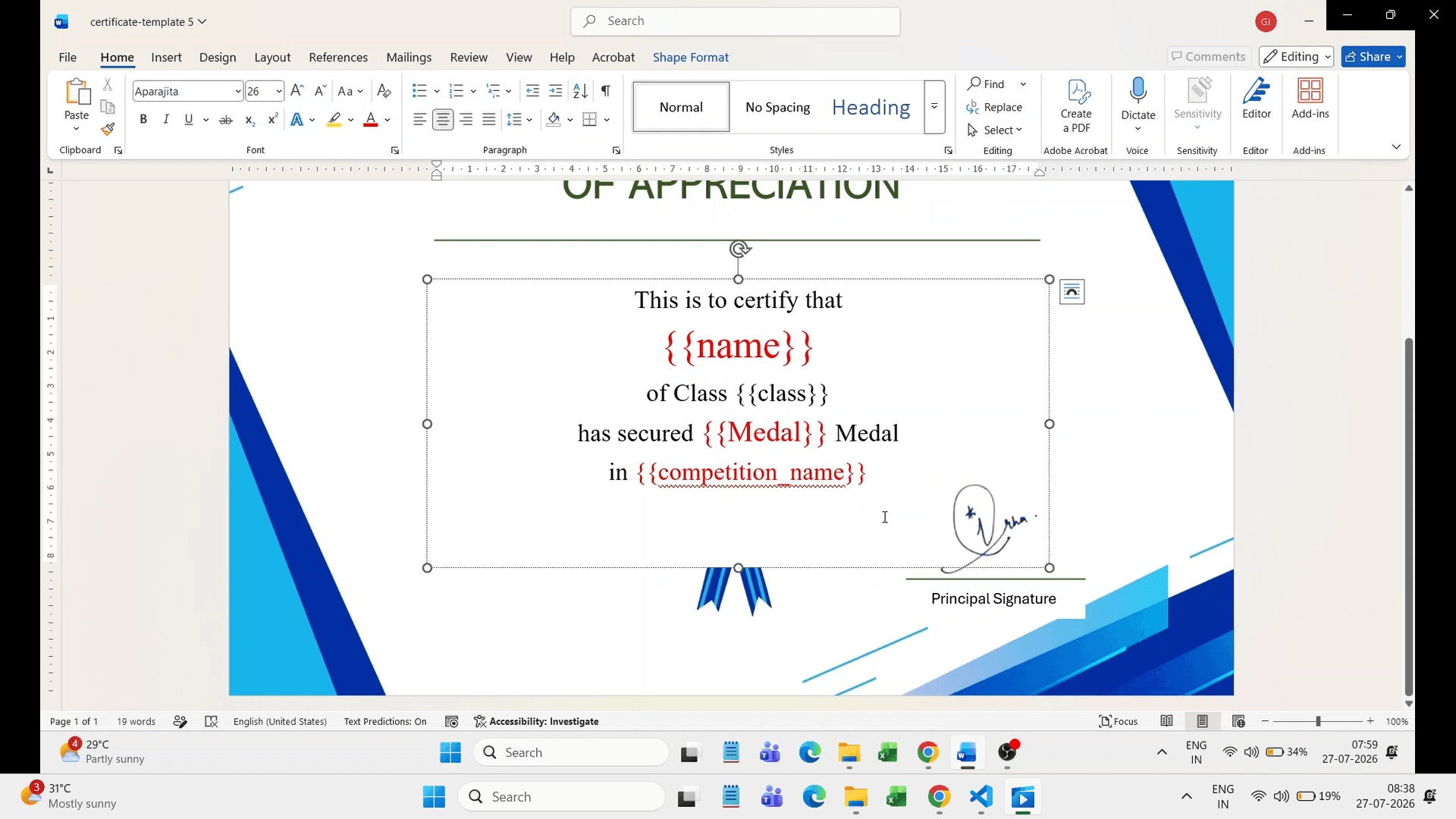
Start with an editable Word certificate template. The existing workflow supports changing its background picture, editing fixed text in text boxes and adding variables in double curly brackets. Place the organisation logo, certificate heading and approved signature area in the template before testing recipient data.
Use variables such as {{Recipient_Name}}, {{Role}}, {{Achievement}}, {{Position}} and {{Recognition_Date}} only when matching spreadsheet columns exist.
Build the recipient spreadsheet around approved categories
Recipient_NameThe confirmed name to display.
Certificate_CategoryParticipation, appreciation, achievement, volunteer, speaker or position.
RoleThe approved role, such as volunteer, trainer, judge or team member.
AchievementA reviewed accomplishment when it should appear.
PositionA verified rank such as first, second or third.
Event_or_ProjectThe event, campaign, department or project being recognised.
ContributionA concise approved description of the recipient’s support.
OrganisationThe issuing organisation or relevant department.
Recognition_DateThe date approved for the certificate.
Certificate_NumberAn optional controlled reference.
Authorised_SignatoryThe approved signatory name or designation.
Use only fields needed by the approved certificate. Keep one row per document. If one person receives both a volunteer certificate and an award, use separate category records and the appropriate template rather than combining unrelated wording.
A practical generation and review process
1. Approve categories and recipients
Confirm who receives participation, appreciation, achievement, volunteer, speaker, team or position recognition.
2. Approve the wording
Review titles, statements, roles, achievements, positions, dates and signatory details.
3. Prepare category templates
Use separate templates when wording, backgrounds or signatories differ materially.
4. Prepare Excel or CSV lists
Create one row per certificate with only the values required by its template.
5. Match variables
Use identical spelling between spreadsheet headings and template variables.
6. Test representative records
Preview long names, long contributions, every category and first-, second- and third-position records.
7. Generate separate PDFs
Create one personalised file per prepared row without writing code, VBA or macros.
8. Check before distribution
Review names, categories, positions, wording, filenames and sample PDFs from every batch.
Using a certificate of appreciation generator responsibly
DataToPDF can place prepared spreadsheet values into the organisation's reusable Word or Excel template and generate personalised PDF documents. The organisation controls the design, categories, wording and recipient list.
A certificate of appreciation generator handles the repeated document step after those recognition decisions have been approved.
It does not decide who deserves recognition, verify a winning position, approve an achievement, authenticate a certificate, validate qualifications or verify signatures. A generated certificate does not independently prove an official qualification or accreditation.
Worked example: five recognition categories after a campaign
A fictional marketing agency completes a public-awareness campaign. Its approved register includes 120 participants, 15 volunteers, 6 speakers, 3 competition winners and 10 team members selected for appreciation.
The agency prepares a participant template with involvement wording, an appreciation template for volunteers and team members, a speaker template, and a position template for the three verified winners. Each category receives its own filtered recipient list.
The coordinator tests long names, long contribution text and all three position values. After generation, each batch is checked against its approved list before the final files are combined for distribution through the agency's normal process.
Quality-control checklist
✓ Recipient names match the approved register.
✓ Every person has the correct certificate category.
✓ Achievements and positions were independently verified.
✓ Event, campaign, project and department names are consistent.
✓ Organisation name, logo and signature area are approved.
✓ Long wording fits without covering design elements.
✓ Duplicate recipient records were reviewed.
✓ Filename patterns distinguish categories where necessary.
✓ Sample PDFs were checked from every template and list.
✓ Corrections were recorded in the final source spreadsheet.
Apply the same planning to achievements and awards
When using a certificate of achievement generator, first confirm the accomplishment and the exact wording that should describe it. Generation should follow that decision, not make it.
When choosing an award certificate generator for positions, competition results or other honours, check that the prepared template and recipient list reflect the approved ranking and recognition category.
Frequently asked questions
Should participants, volunteers and winners use the same wording?
Usually not. Participation recognises involvement, appreciation recognises contribution, and a position certificate records a verified result. Use wording and templates that match the organisation’s approved purpose.
Can one spreadsheet contain several recognition categories?
Yes, for review and record keeping. For generation, separate category-specific lists and templates are often clearer when the certificate title, wording, signatory or design changes substantially.
Can certificate wording come from a spreadsheet column?
A prepared text field can be connected to a matching template variable. Review its length and line wrapping carefully. When whole paragraphs differ by category, separate approved templates may be simpler and safer to check.
Does DataToPDF decide who deserves an award or appreciation?
No. The organisation must approve recipients, categories, positions, achievements, wording and signatories. DataToPDF places the prepared values into the selected template.
Does a generated certificate prove an official qualification?
No. Document generation does not validate a qualification, authenticate a certificate, verify eligibility or provide accreditation. The issuing organisation is responsible for the recognition and its claims.
Related resources
Approve the recognition first, then prepare the certificate files
Separate the categories, review the wording and test each template with realistic recipient data before generating the final PDFs.