Certificate data and template guide
How to Create Certificates in Bulk from Excel
A certificate batch is only as dependable as its approved recipient list and template. This guide explains how to prepare certificate records, choose meaningful columns, map variables and review documents before generating one PDF per row.
View the Bulk Certificate Generator
What bulk certificate generation does—and does not do
Bulk generation removes repeated document editing. Instead of opening a certificate and retyping each recipient, you prepare one row per approved record and use variables to place those values into a reusable design.
It does not decide whether the recipient earned an award or whether the organisation is authorised to issue it. Those decisions must be completed by the responsible people before the spreadsheet becomes a document source.
What to prepare before starting
Approved recipient list
A reviewed source identifying everyone who should receive the certificate and the reason for the award.
Certificate wording
The fixed title, award statement, organisation name and labels that should appear on every document.
Changing values
Recipient-specific details such as name, course, achievement, grade, date or certificate number.
Authority details
Approved signatory name, designation and signature presentation, without implying that generation verifies the signature.
Reusable template
A Word or Excel certificate design with enough space for the longest realistic values.
Review owner
A named person or team responsible for checking the source data and representative previews.
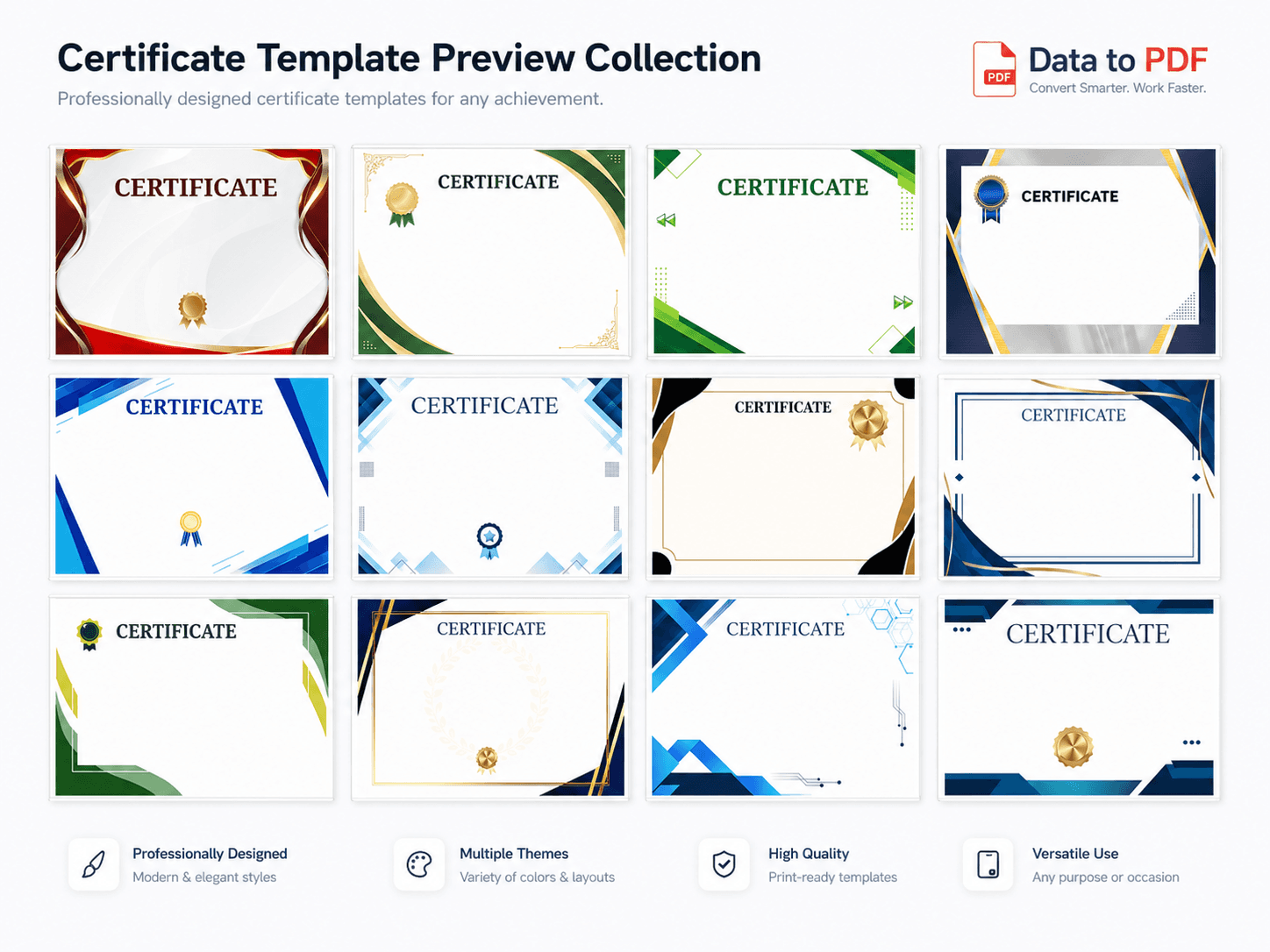
How to structure certificate data in Excel
Use one heading row and one complete certificate record per data row. Keep headings unique and stable, avoid merged cells, and do not place explanatory notes above the heading row. A name should remain text, a certificate number should retain meaningful leading zeros, and dates should use a format the reviewer can interpret consistently.
Choose only the columns required by your design. A training certificate may need a course and completion date, while an achievement certificate may need an event, position and score. The following are examples, not compulsory fields.
Recipient_NameStudent_NameEmployee_NameCertificate_TitleCourse_NameEvent_NameAchievementGradeScoreCompletion_DateIssue_DateCertificate_NumberOrganisation_NameAuthorised_SignatoryDesignationLocationRemarks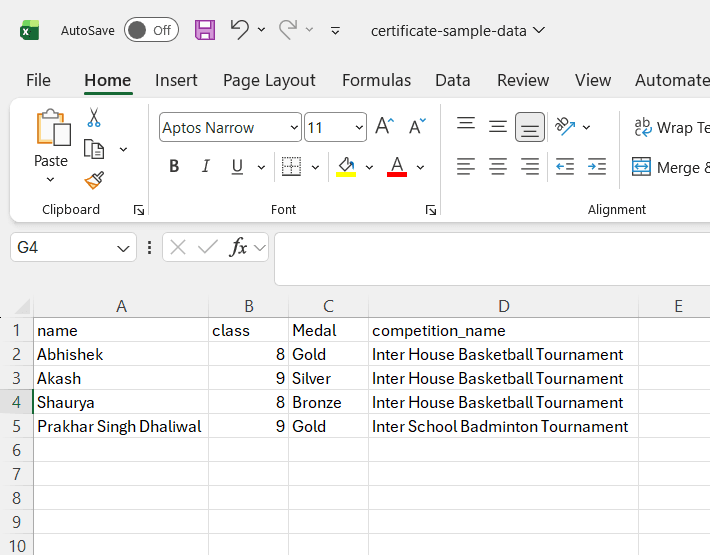
Add variables that match the column headings
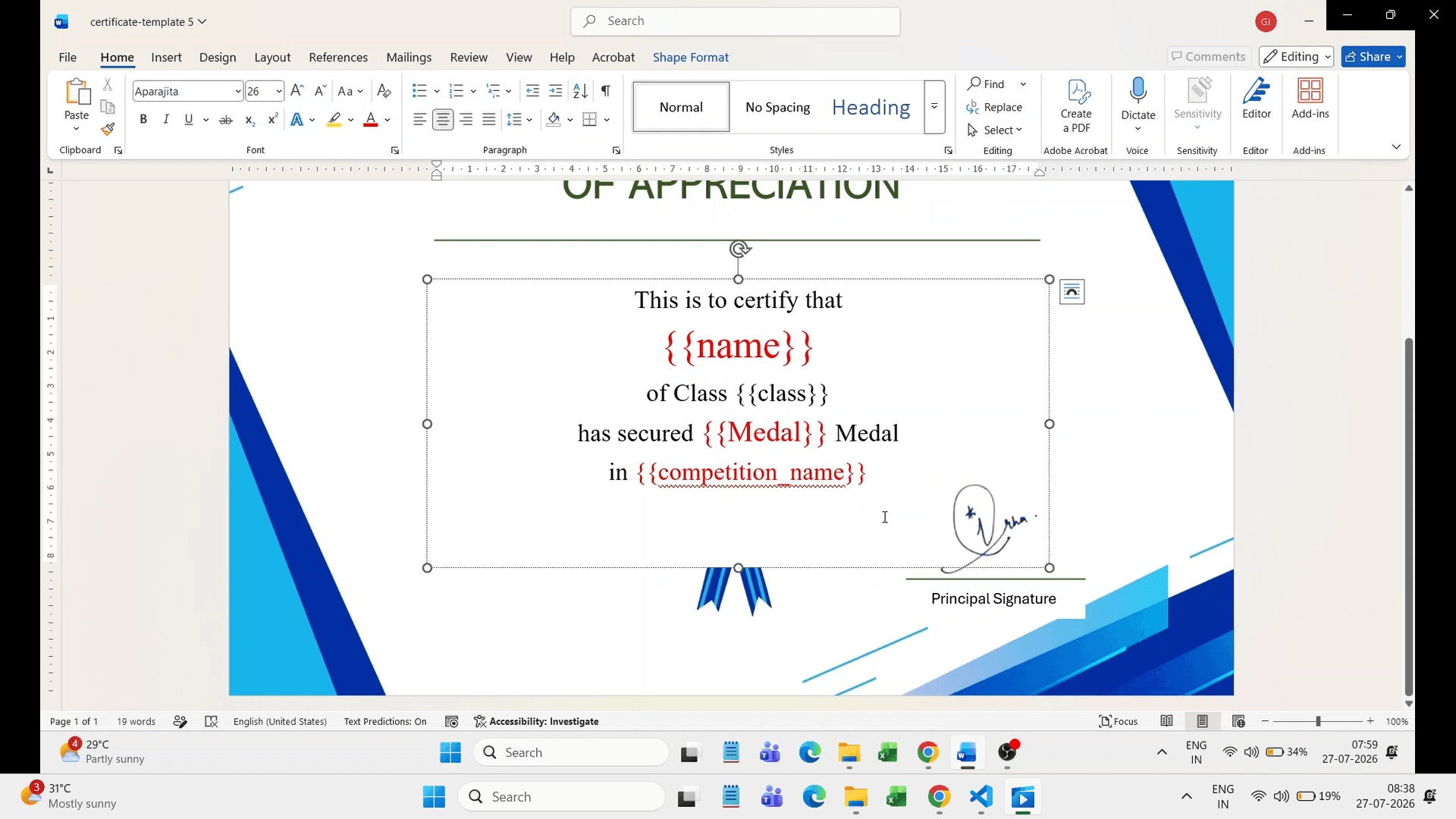
A variable marks where a changing value belongs. Match spelling, spaces and underscores between the template and spreadsheet. Use descriptive variables so a reviewer can understand the mapping without guessing. Keep fixed wording as ordinary template text.
{{Recipient_Name}}Approved recipient name
{{Certificate_Title}}Certificate type or heading
{{Course_Name}}Completed course or programme
{{Completion_Date}}Reviewed completion date
{{Certificate_Number}}Assigned document reference
{{Organisation_Name}}Issuing organisation text
{{Authorised_Signatory}}Approved signatory label
Step-by-step certificate-generation workflow
1. Approve the purpose and recipients
Confirm the certificate type, award basis and eligible recipients through the responsible organisation process.
2. Prepare the spreadsheet
Create one row per certificate and include only the fields needed by the chosen design.
3. Prepare the template
Add fixed wording, approved authority details and variables that match the spreadsheet headings.
4. Test realistic values
Use fictional long names, course titles and remarks to check spacing before using production records.
5. Upload the prepared files
Upload the spreadsheet and template, then inspect the detected variables and selected preview row.
6. Review representative previews
Check an ordinary record and records with the longest name, highest score or unusual achievement wording.
7. Generate and organise the PDFs
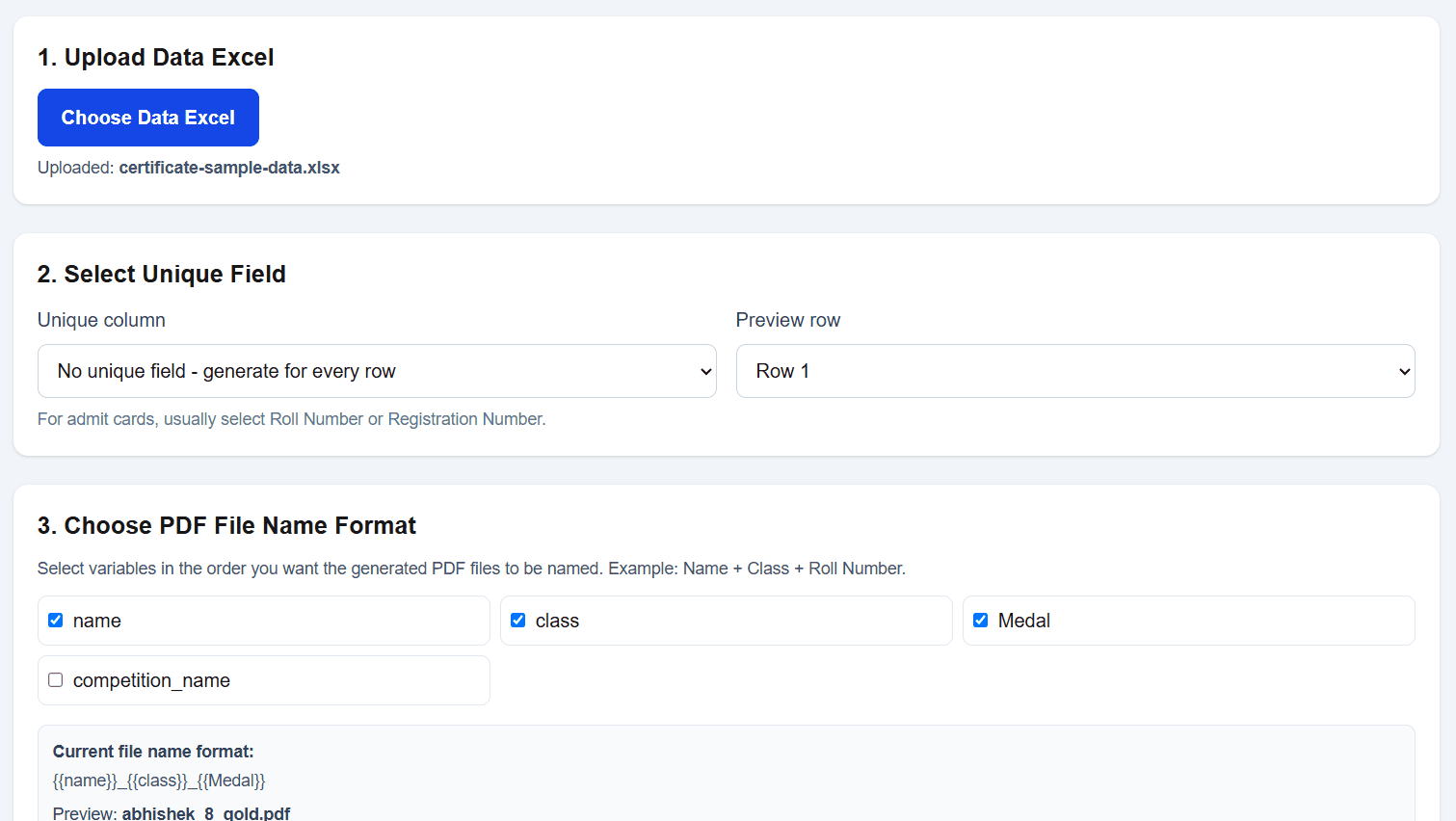
Create one PDF per prepared row and use an approved, non-sensitive filename pattern.
Verification checklist
✓ Every recipient was approved through the responsible process.
✓ Names use the preferred spelling and capitalisation.
✓ Certificate title matches the intended award or completion.
✓ Course, event, achievement, grade and score values are correct.
✓ Completion and issue dates have the intended meaning.
✓ Certificate numbers are present, unique and correctly formatted.
✓ Organisation, authority and signatory text was approved.
✓ The longest realistic values fit without covering other content.
✓ No unused variable remains visible in representative previews.
✓ The distribution list matches the final approved spreadsheet.
Worked example: course-completion certificates
Imagine a training team has approved certificates for a fictional course called Spreadsheet Fundamentals. Its source list contains recipient name, employee ID, course name, completion date, score, certificate number and signatory label. The decision to award completion has already been made.
Build an export sheet with one row per approved recipient. Keep the employee ID for review even if it is not printed. Map the name, course, completion date and certificate number to visible variables. Include the score only when the certificate design and approval process require it.
Preview the longest recipient name and the longest course wording. Confirm that the certificate number has not been converted to scientific notation and that dates have not been interpreted differently across rows. Compare each preview with the approved source rather than with memory.
A signature image or signatory name in the design is a visual element supplied by the organisation. Its presence does not mean that DataToPDF authenticated the person or verified a digital signature.
File-naming guidance
Choose a filename pattern that helps authorised staff identify the document without exposing unnecessary personal data. A certificate number plus a short recipient reference is often more reliable than a name alone. Avoid grades, scores or other sensitive details in filenames unless your policy requires them. Check duplicate names before distribution.
Practical use cases
- School participation and achievement certificates
- Course and workshop completion documents
- Competition rank or recognition certificates
- Employee training acknowledgements
- Event volunteer and contributor certificates
- Replacement copies from an approved historical record
Common bulk-certificate mistakes
Using an unapproved participant list: complete eligibility and award decisions before document preparation.
Relying on names as unique identifiers: retain a student, employee or certificate reference for review.
Mixing fixed wording with changing data: decide which text belongs in the template and which belongs in spreadsheet columns.
Using vague column names: distinguish completion date from issue date and grade from score.
Ignoring long values: test the longest recipient, course and achievement wording before the full batch.
Assuming a polished PDF proves validity: visual quality does not verify eligibility, qualifications, authority or authenticity.
Troubleshooting certificate output
- A variable is printed literally.
- Compare it character by character with the spreadsheet heading and check the curly brackets.
- A recipient name overlaps other text.
- Increase the available text area or adjust typography, then test the longest realistic name.
- A certificate number loses leading zeros.
- Store the number in a format that preserves its complete identifier before upload.
- A date appears in the wrong format.
- Standardise the prepared display value and distinguish issue date from completion date.
- An award detail is disputed.
- Return to the responsible approval source. Do not use document generation to decide or validate the award.
When this method may not be suitable
This workflow is not suitable when you need an accreditation platform, qualification registry, eligibility engine, identity verification, cryptographic signing service, signature validation or certificate-authentication portal. It may also be unsuitable when every recipient requires a completely different design rather than a repeatable template. Use the appropriate specialist system and professional process for those needs.
Bulk certificate FAQs
Does DataToPDF decide who should receive a certificate?
No. The responsible school, organisation, event team or employer decides eligibility and approves each award. DataToPDF places the prepared spreadsheet values into the certificate template.
Can I choose my own certificate spreadsheet columns?
Yes. Choose columns that match the information shown in your certificate design. The examples in this guide are optional, not compulsory.
Why does a certificate variable remain unchanged?
The variable usually does not match its spreadsheet heading exactly. Check spelling, spaces, underscores, brackets and accidental leading or trailing spaces.
Can DataToPDF authenticate certificates or digital signatures?
No. DataToPDF generates PDF documents from prepared data and a template. It does not authenticate certificates, verify signatures or provide digital-signature validation.
What should I review before generating the full certificate batch?
Review recipient names, certificate title, course or event, dates, grade or score, certificate number, organisation details, authority and signatory text. Preview ordinary and exceptional records before generating the batch.
Can I create certificates for schools, events and employee training?
Yes, when the responsible organisation has approved the recipients and prepared a consistent template. The same data-to-template method can support several certificate contexts.
Related resources
Prepare the approved records, then generate the documents
When your recipient list, certificate wording and template have been reviewed, DataToPDF can place each prepared row into the reusable design and create separate certificate PDFs.