A post-event workflow for organising teams
How Event Organisers Can Create Certificates for Hundreds of Participants
Turn the final attendee list into separately named certificate PDFs while keeping corrections, missing files and resends under control.
The event ended yesterday, but the organising team's inbox is still busy. One participant wants to know when the certificate will arrive. Another says their surname is misspelled. Someone else cannot find the file, while a speaker asks for a college name to be added before the certificate is shared again.
A single attendee request can be handled quickly. A list of 300 creates a separate administrative project: names must be copied, event details checked, PDFs exported, files named and output matched with the attendance list. Corrections and resends continue after the first distribution.
Most organisers already possess the necessary information. It may be in Google Form responses, a Google Sheet, an Excel registration file, a CSV export, an attendance record or webinar-registration software. The difficult part is turning that final list into correctly personalised, separately named PDF certificates.
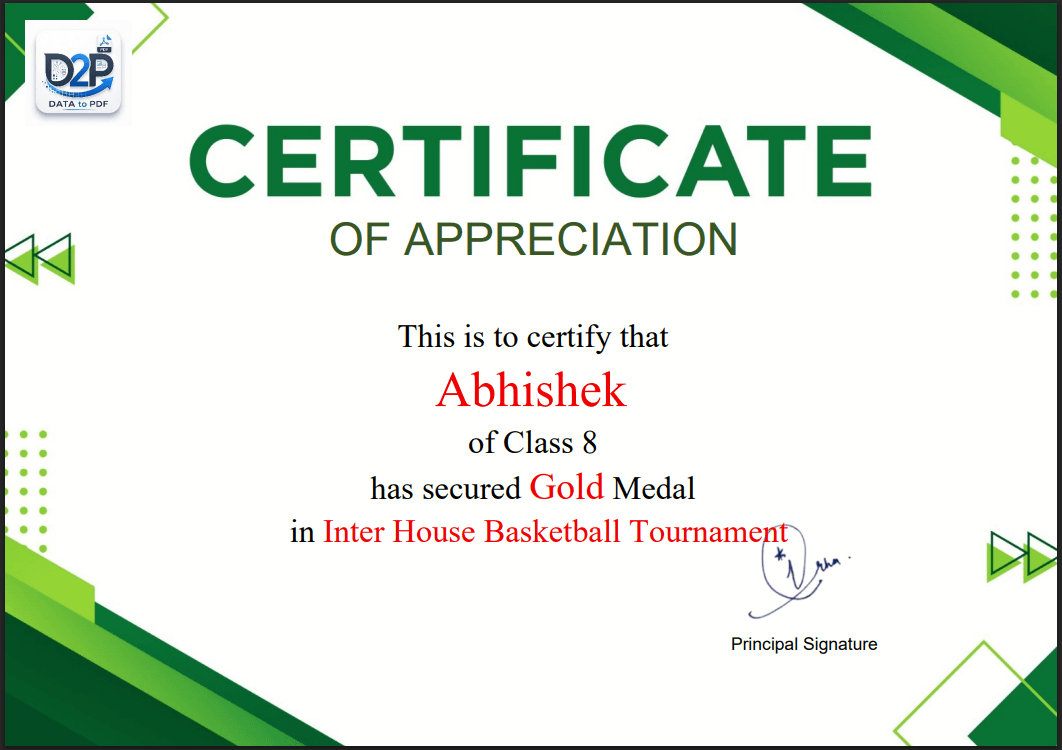
Why 300 certificates are not simply one certificate repeated
The design may remain unchanged, but the records do not. Attendees enter names with different capitalisation, extra spaces or initials. Some register twice with different email addresses. A person may register but not attend, while a walk-in attendee appears only on the final attendance sheet.
Manual production adds another layer of work. The organiser duplicates the design, replaces values, exports each PDF and chooses a filename. A missed row creates a missing certificate. Reusing the previous name creates the wrong document. Saving two files under one name can hide an output.
Distribution creates a support task of its own. When someone requests a resend, the team needs to locate the right file quickly. When a correction is approved, it needs to know whether the spreadsheet, certificate or both were updated.
ChatGPT and design tools help with a different part
ChatGPT may help draft clear participation wording or suggest fields to review. A design tool may help produce one suitable layout. Those are useful preparation tasks.
The remaining problem is operational: connect hundreds of approved records to the design, produce one PDF for each row, name the files consistently and preserve the source needed for corrections. Neither wording nor design alone completes that batch process.
Start with the final attendance list, not the registration list
Registrations show who intended to attend. Certificates should use the list approved under the event's actual participation rules. Compare registrations with attendance records, remove duplicates, resolve incomplete names and decide how walk-in participants will be recorded.
If the data comes from Google Forms or event software, export or save the required fields as Excel or CSV before using them. This workflow does not depend on a direct integration. Keep the original export, then create a cleaned working copy so the team can trace changes.
Prepare columns that match the certificate and correction log
Participant_NameThe confirmed name that should appear on the certificate.
Event_NameThe approved webinar, conference or workshop title.
Participation_CategoryParticipant, speaker, volunteer, judge or another reviewed role.
OrganisationAn optional college or organisation name requested by the event.
Event_DateThe date or date range approved for the certificate.
Certificate_NumberAn optional unique reference controlled by the organiser.
Email_AddressA record-keeping field; it does not mean DataToPDF sends email.
Use only the columns needed by the event. An email address can help the organiser match requests with records, but this does not imply that DataToPDF emails certificates. Distribution remains part of the organiser's existing process.
Keep certificate categories controlled
Participants, speakers, volunteers, organisers, judges and workshop trainers may need different wording. If only a short role label changes and the approved design works for everyone, a reviewed category column may be sufficient. If the statement, signatory or layout changes materially, prepare separate templates and separate controlled batches.
Do not assume that the document tool decides which template a person should receive. The event team must classify and verify each record before generation.
A simple workflow to automatically generate certificates
With an approved attendee list and a reusable template, organisers can automatically generate certificates without writing code or repeating the same edits for every person.
1. Approve the recipient list
Apply the event’s attendance rules and resolve duplicate, incomplete or disputed records.
2. Clean the working spreadsheet
Standardise names, event wording, organisation names, roles, dates and certificate numbers.
3. Prepare the template
Keep fixed wording in the Word or Excel design and add variables for changing values.
4. Match variables and columns
Use the same spelling for each spreadsheet heading and its double-curly-bracket variable.
5. Test representative records
Preview long names, long organisations, every role category and a record with an optional blank field.
6. Generate separate PDFs
Create one personalised document per prepared row without requiring code, VBA or macros.
7. Check before distribution
Compare file counts, inspect samples from every category and confirm filename readability.
8. Retain the final source
Keep the approved list and correction record so missing files and resends can be handled consistently.
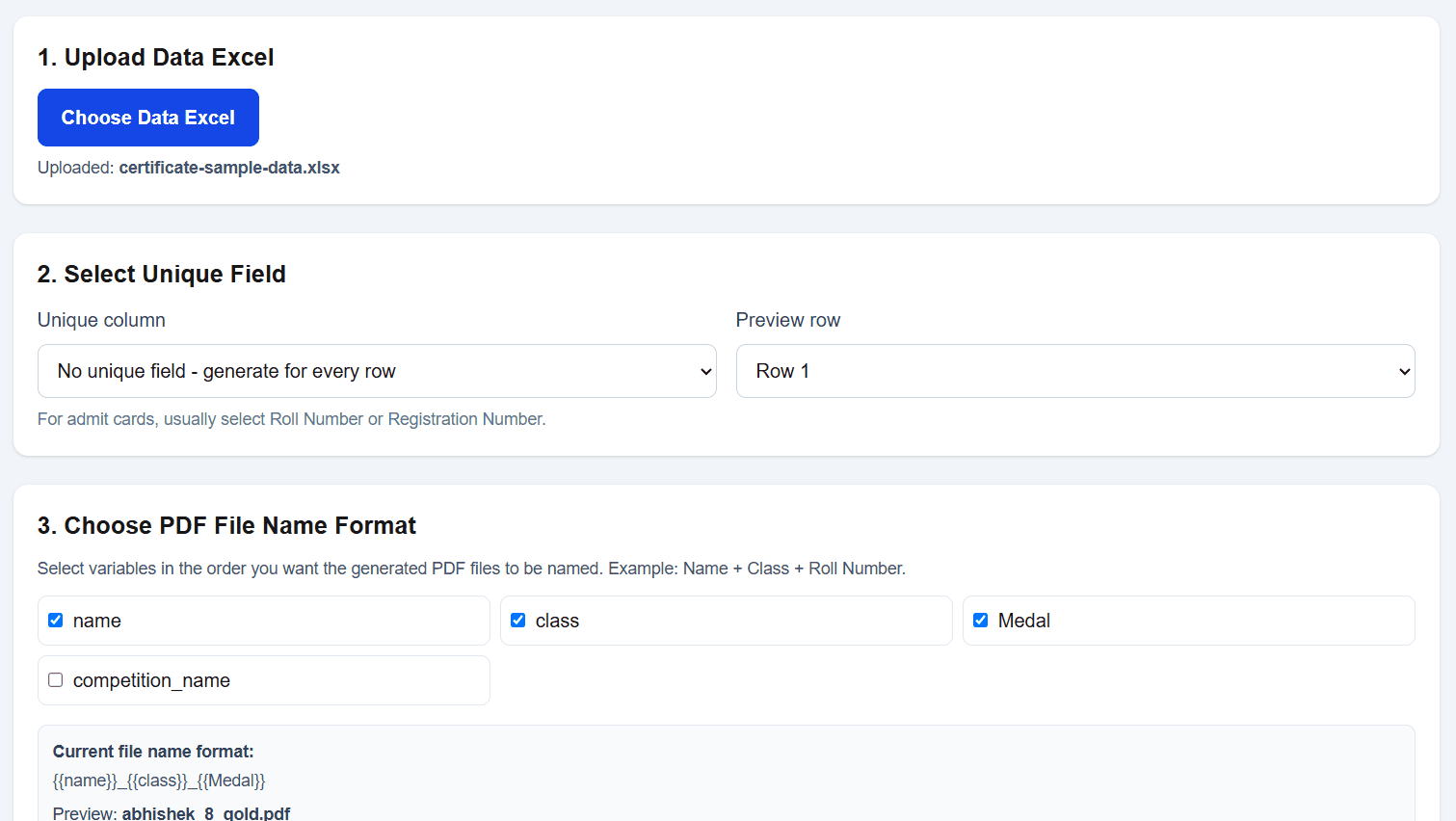
Where DataToPDF fits—and where it does not
DataToPDF places prepared spreadsheet values into a reusable Word or Excel certificate template and generates personalised PDF documents. It does not require the organiser to write code or create a VBA macro.
It does not verify attendance, approve recipients, correct spellings, authenticate certificates, validate qualifications, verify signatures or distribute files by email. The event team remains responsible for source data, category decisions, certificate wording, review and delivery.
When evaluating an automatic certificate generator, separate the document-generation feature from attendance management, registration, email delivery and certificate verification. They are different responsibilities.
Worked example: a 240-person community webinar
A fictional NGO hosts a community webinar with 276 registrations. Its attendance export contains 231 names. After removing three duplicate records and adding twelve approved attendees recorded by the host, the final certificate list contains 240 rows.
The team confirms participant names, event title, organisation names and event date. Speakers are moved to a separate sheet because their certificate wording differs. The participant sheet receives unique certificate numbers and one reviewed role value.
Before generating the full group, the organiser previews the longest name, longest organisation and records with no organisation. It then compares the 240 generated PDFs with the 240 approved rows and stores the final spreadsheet beside the output folder.
Correction and resend control
Test before the full batch
Check several names, every certificate category, event spelling and the approved date.
Preserve the source
Keep the original export and a clearly labelled final working spreadsheet.
Use useful references
Add unique certificate numbers when the organisation’s process requires them.
Record approved corrections
Update the final working sheet so regeneration does not restore an old error.
Separate corrected output
Keep corrected files distinguishable from the first batch to avoid sending the wrong version.
Keep a resend record
Note which final file was resent and when, using the organisation’s normal support process.
Use a Google Sheet export without implying an integration
Organisers who want to generate certificates from a Google Sheet export usually already have useful registration columns. Save the reviewed sheet in a supported Excel or CSV format, keep a copy of the source and use the cleaned export for the certificate batch. DataToPDF does not need direct access to the organiser's Google account for this process.
Frequently asked questions
Can I use responses collected through a Google Form?
Yes, after reviewing the responses and exporting or saving the required participant data in a supported spreadsheet format. DataToPDF does not need a direct Google Forms integration for this workflow.
Should speakers and participants use the same template?
Only when the wording and design are genuinely the same. Speakers, volunteers, judges and participants often need different certificate wording, so separate approved templates or separate controlled batches may be clearer.
Does DataToPDF email certificates to attendees?
This guide does not assume an email-delivery feature. DataToPDF generates personalised PDF documents from prepared data and a template. Organisers should distribute the files through their existing approved process.
How should corrections be handled after distribution?
Correct the final source spreadsheet, confirm the revised value, prepare a correction list containing the affected record, generate the replacement file and store it separately from the original output.
How can I reduce missing-certificate complaints?
Reconcile the final PDF count with the approved attendee rows, use a consistent filename pattern, keep the final spreadsheet and maintain a simple record of corrections and resends.
Related resources
Turn the approved attendee list into the final certificate batch
Clean the records, test representative participants and keep the reviewed source ready for corrections and resends.