Payroll document preparation
How to Prepare Salary Slip Data in Excel Before Generating PDFs
A dependable salary-slip batch starts before any files are uploaded. This guide explains how to organise employee data, review calculated payroll values and connect spreadsheet columns to a reusable document template.
View the Salary Slip Generator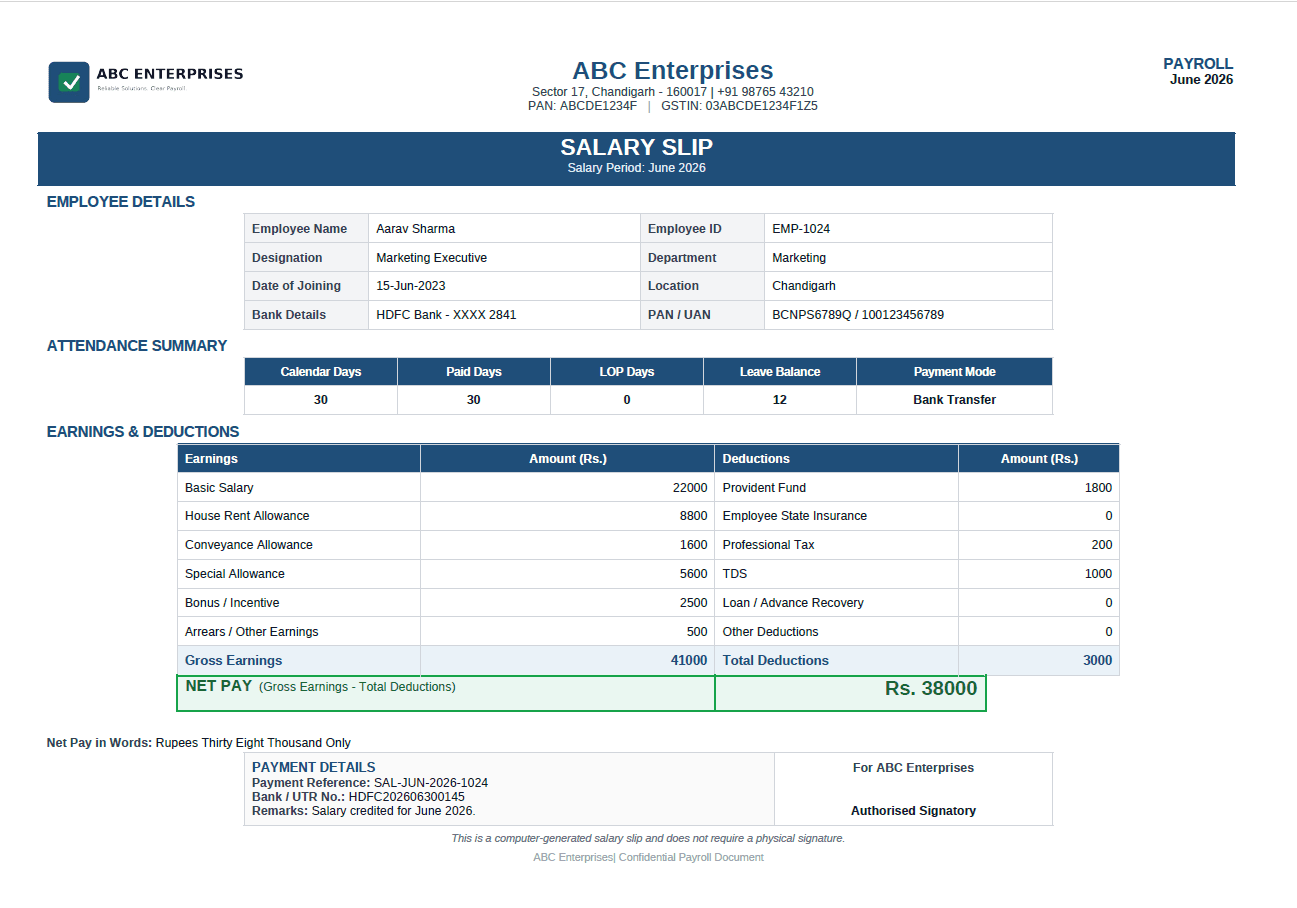
Start with the payroll source, not the document
A salary slip communicates a payroll result; it should not be the place where that result is invented. Complete your normal payroll process first. Confirm the pay period, approved attendance, earnings, deductions and payment outcome, then transfer the approved values into a clean spreadsheet.
Use one stable employee identifier in addition to the employee name. Names can repeat or change, while an employee ID helps with review and file naming. Keep monetary cells as numbers in the source workbook and apply a consistent rounding policy before upload.
Build a reviewable salary-slip spreadsheet
Keep headings short, unique and stable. Avoid merged header cells, blank heading rows and two columns with the same name. Decide whether a blank means zero, not applicable or missing, and resolve that distinction before generation.
Employee_IDEmployee_NameDesignationDepartmentPay_MonthCalendar_DaysPaid_DaysBasic_SalaryHRAOther_EarningsPFESITDSOther_DeductionsGross_EarningsTotal_DeductionsNet_Pay
Connect columns to template variables
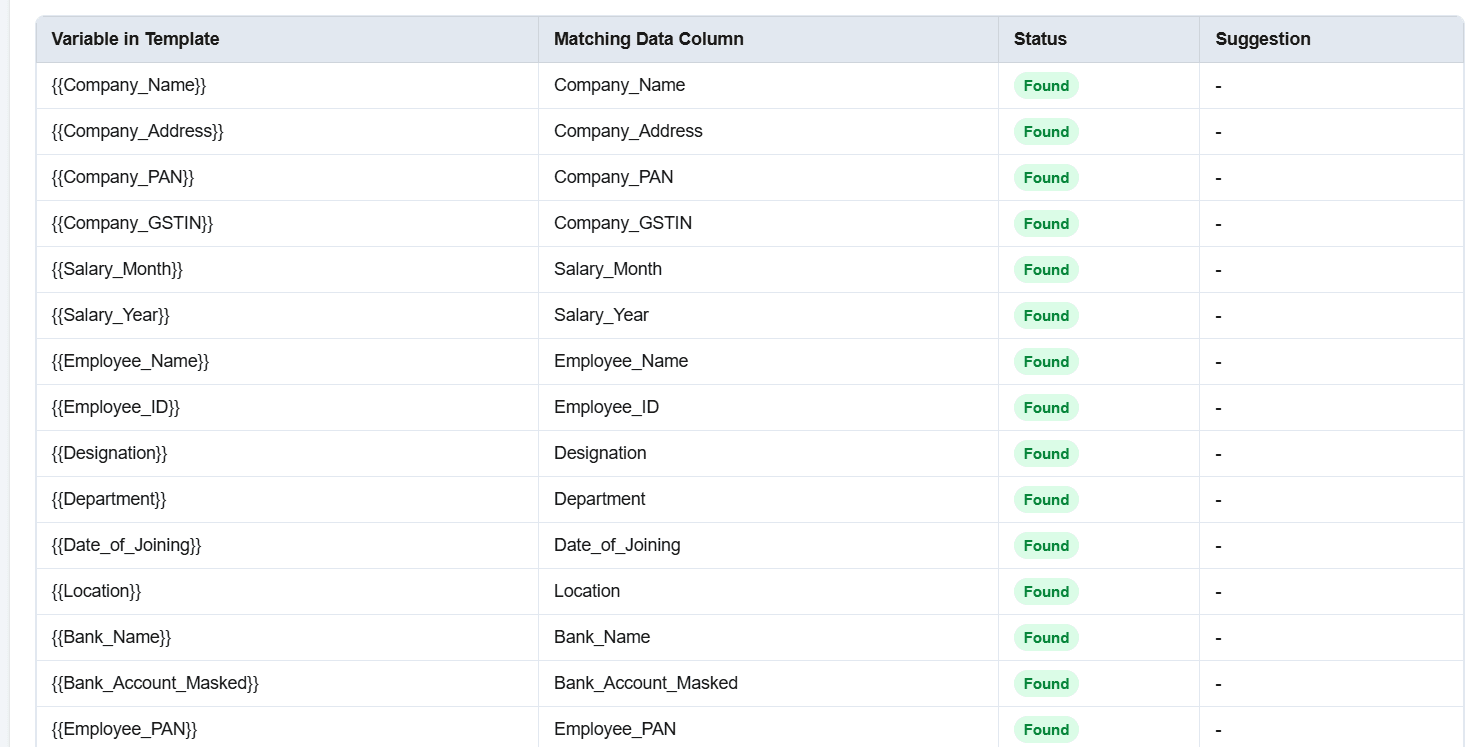
A variable marks the position where a spreadsheet value should appear. If the column is named Employee_Name, the template should use the matching variable expected by your workflow. Treat spelling, spaces and underscores consistently.
{{Employee_Name}}Employee name
{{Pay_Month}}Salary period
{{Gross_Earnings}}Verified total earnings
{{Total_Deductions}}Verified deduction total
{{Net_Pay}}Approved net-pay value
{{Employee_ID}}Stable employee reference
Step-by-step document workflow
1. Approve the payroll source
Finish payroll calculations in the appropriate payroll or review process. Resolve exceptions before creating the document sheet.
2. Create the export sheet
Use one row per employee and pay period. Include only approved fields needed by the salary-slip template.
3. Review variable names
Compare every template variable with the intended spreadsheet heading and remove unused placeholders.
4. Upload the two prepared files
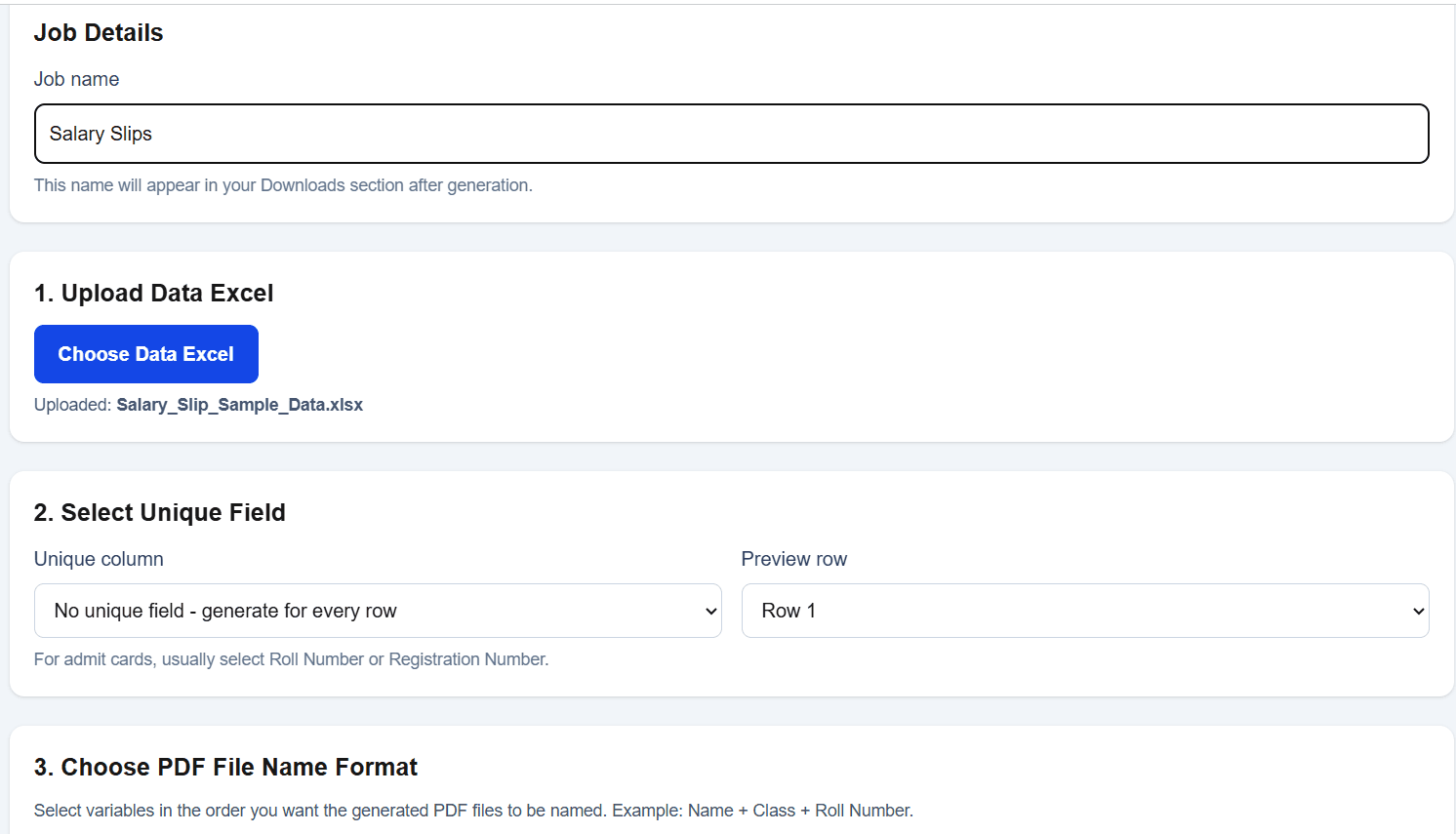
Upload the spreadsheet and salary-slip template, then inspect the detected fields and selected preview row.
5. Preview representative records
Check a typical employee and at least one record with unusual earnings or deductions before generating the batch.
6. Generate and organise outputs
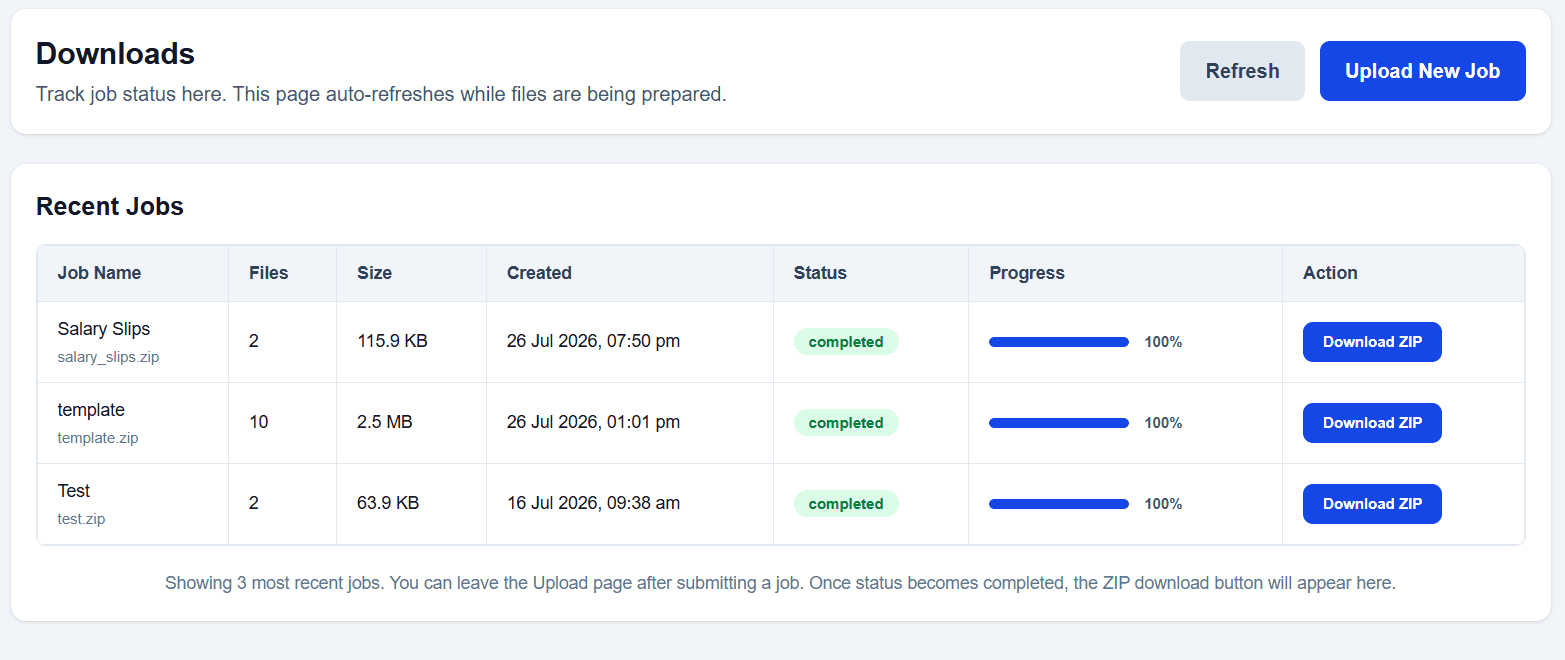
Create the PDFs and use meaningful filenames so HR can identify the employee and pay period without opening every document.
Verification checklist
✓ Employee ID and name belong to the same person.
✓ Pay month and year are correct on every row.
✓ Approved earning and deduction values are present.
✓ Gross earnings, total deductions and net pay were independently verified.
✓ Attendance and leave fields use the approved source.
✓ Bank or tax identifiers are masked when they do not need to appear.
✓ Variable spelling matches the template.
✓ A representative preview has been reviewed.
Worked example: preparing one monthly record
Suppose an approved payroll report contains employee EMP-1024 for June 2026. The payroll source confirms basic salary, allowances, provident fund, professional tax and TDS, along with 30 calendar days and 30 paid days. The preparation task is to represent those approved results clearly—not to reproduce the formulas that calculated them.
Start the export row with the employee ID, employee name, department, designation and pay month. Add each earning and deduction in its own named column. Then add the approved gross earnings, total deductions and net pay. If the salary slip displays an amount in words, prepare and review that value as well rather than assuming that document generation will derive it.
Compare the completed row with the payroll approval report. A second reviewer should be able to answer three questions: does the row belong to the correct employee, does it represent the correct pay period, and do all printed values match the approved result? Only then should the row enter the document batch.
In the preview, inspect the employee header first, followed by the earnings and deductions tables, net-pay area and payment reference. This order helps the reviewer catch an identity or period mismatch before spending time on individual amounts. Repeat the review with an employee whose record contains a bonus, arrears, unpaid leave or another exception.
Handle payroll data with appropriate care
Salary records can contain sensitive personal and financial information. Limit the export sheet to fields required by the document, restrict access according to your organisation’s policy and avoid placing full bank or tax identifiers in filenames. Use fictional data for template testing. When the batch is complete, store and distribute the PDFs through the approved HR process rather than an informal shared location.
Common mistakes and how to avoid them
Mixing calculation formulas with final values: export or confirm the final approved values so a later workbook recalculation does not unexpectedly change the document source.
Using employee names as the only key: add an employee ID to distinguish duplicate names and support reliable filenames.
Changing headings after the template is prepared: update the template variable whenever a heading changes, or retain a stable export format.
Leaving zeros and blanks ambiguous: decide what should be printed when a component does not apply, and clean the sheet accordingly.
Sending the full batch without a spot check: review records with bonuses, leave deductions or other non-standard values.
Troubleshooting salary-slip output
- A variable appears unchanged.
- Compare its exact spelling with the spreadsheet heading and check for extra spaces or punctuation.
- A value appears under the wrong label.
- Inspect the template placement and confirm that similarly named columns were not interchanged.
- A long value breaks the layout.
- Adjust the template field width or typography, then preview the longest realistic employee name or designation.
- A total looks incorrect.
- Return to the approved payroll source. Correct and re-approve the value there rather than treating PDF generation as a calculation step.
When this method may not be suitable
This workflow is not suitable when you still need to compute payroll, approve attendance, apply statutory rules, submit filings or transfer salary payments. Complete those tasks in the appropriate systems first. It may also be unsuitable when every employee requires a substantially different layout instead of a consistent template.
Practical uses
- Monthly salary documents for a small company
- Verified staff pay statements for a school
- Salary slips prepared by an HR administration team
- Standardised documents for several branches
- Reissuing an approved historical pay-period document
Salary-slip preparation FAQs
Does DataToPDF calculate salary or net pay?
No. You calculate and verify salary, earnings, deductions, attendance and net pay before upload. DataToPDF places the prepared values into your template and generates salary-slip PDFs.
Should one employee use one Excel row?
Usually, yes. One row per employee and pay period keeps each output document tied to a complete record. If an employee has several earning lines, prepare the template and columns consistently before generation.
Can I use my own salary-slip design?
Yes. You can use a suitable Word or Excel template containing variables that match your spreadsheet column headings.
What should I check before generating salary slips?
Check employee identifiers, pay period, earnings, deductions, attendance values, net pay, payment details and variable names. Review a preview before generating the full batch.
Is this a replacement for payroll software?
No. This workflow is for document generation from already prepared data. Use your payroll process or qualified adviser to calculate and approve payroll values.
Related resources
Turn approved payroll data into consistent documents
Once your payroll values and template have been reviewed, use DataToPDF to prepare separate salary-slip PDFs from the completed spreadsheet records.