Invoice document workflow
How to Prepare Invoice Data in Excel for Bulk PDF Generation
Bulk document generation works best when invoice records are complete, reviewed and consistently structured. Learn how to prepare the spreadsheet that feeds a reusable invoice template.
View the Invoice Generator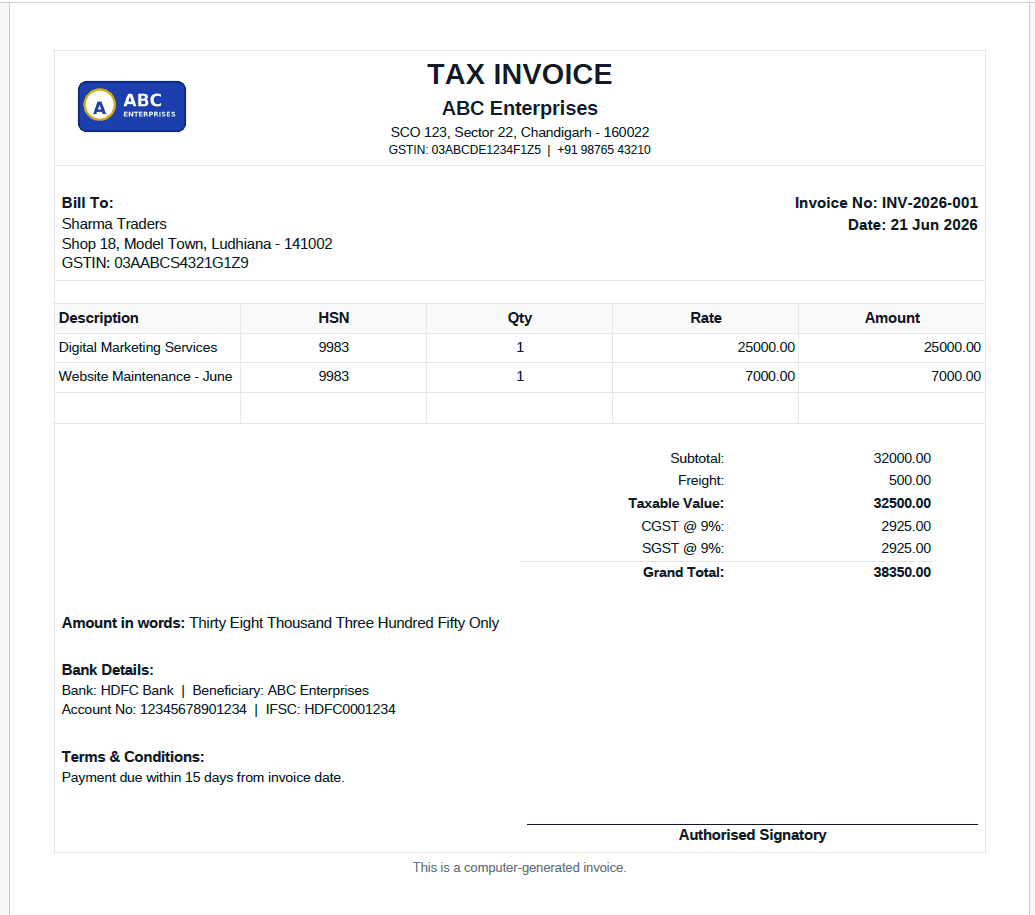
Separate invoice preparation from PDF generation
Before building an export sheet, complete the business process that determines what should be invoiced. Confirm the customer, supply details, quantities, rates, discounts, applicable tax treatment and due date using the records and advice appropriate to your organisation.
The export sheet should contain final document values, not unresolved assumptions. This makes review easier: a reviewer can compare a spreadsheet row with its invoice preview without tracing hidden calculations across several worksheets.
Choose a spreadsheet structure the template can repeat
For invoices with a consistent maximum number of line items, columns such as Item1_Description, Item1_Qty and Item1_Rate can map to fixed positions. Decide how unused item positions should appear. Do not leave stray labels or zero-value lines in the final layout.
Invoice_NoInvoice_DateDue_DateCustomer_NameCustomer_AddressCustomer_GSTINItem1_DescriptionItem1_HSNItem1_QtyItem1_RateItem1_AmountDiscountSubtotalCGSTSGSTIGSTGrand_Total
Design useful invoice variables
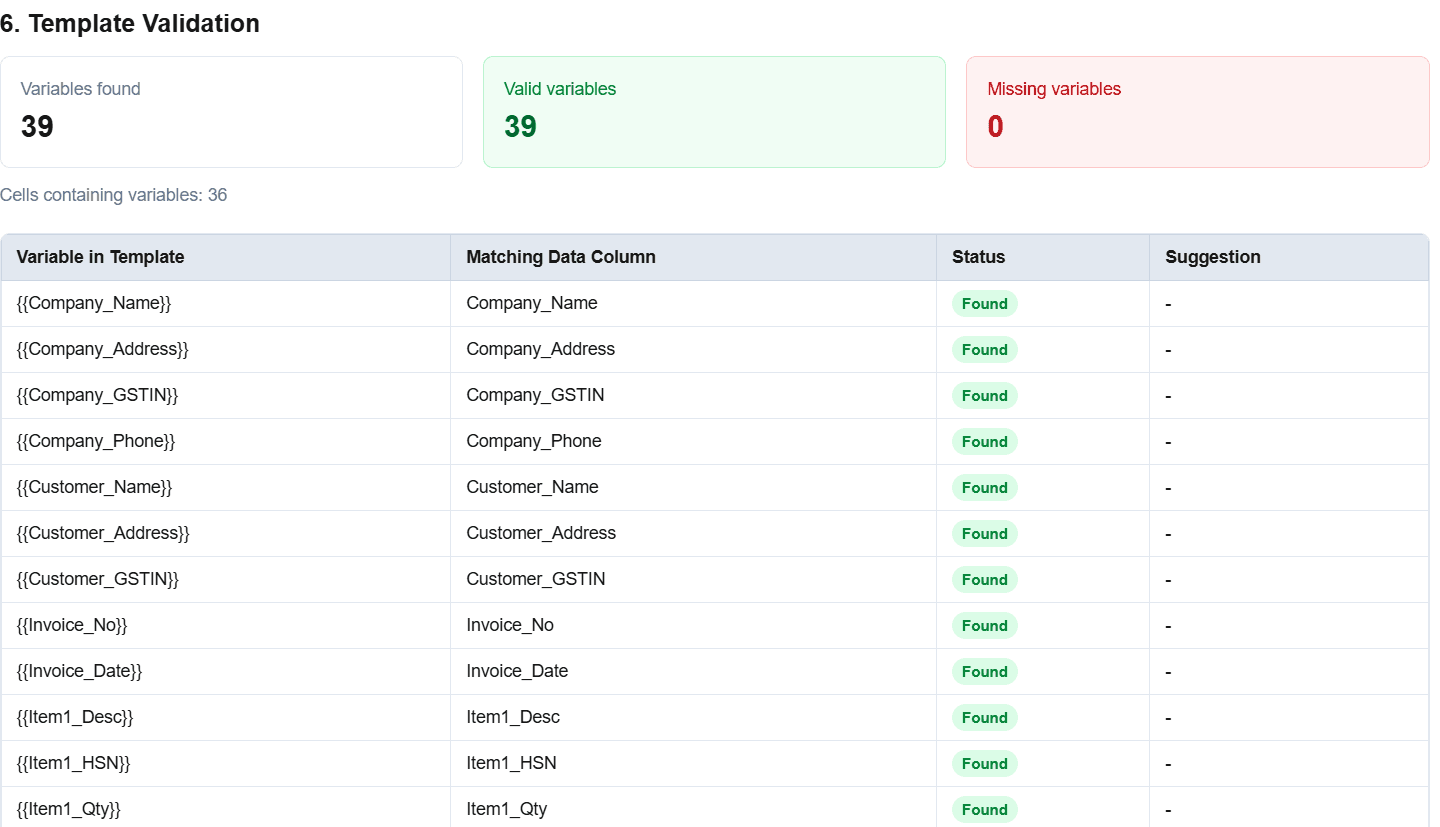
Variable names should describe the supplied value precisely. Distinguish a tax rate from a tax amount and a subtotal from a grand total. If the template says GST but the source column holds a combined tax amount, reviewers may misunderstand the document even when the mapping technically works.
{{Invoice_No}}Document reference
{{Customer_Name}}Bill-to party
{{Item1_Qty}}Verified quantity
{{Item1_Rate}}Verified rate
{{Subtotal}}Prepared subtotal
{{Grand_Total}}Approved final total
A controlled six-step workflow
1. Finalise the invoice record
Resolve customer, item, rate, discount, tax, total and due-date questions in the responsible business process.
2. Prepare the export sheet
Place each complete invoice record in a consistent row and remove internal notes that should not appear in the document.
3. Match the template
Check every variable against its column and test the maximum number and length of line items.
4. Upload prepared files
Select the spreadsheet and invoice template, then inspect the chosen preview record.
5. Review exceptions
Preview invoices with discounts, different tax arrangements, long addresses or several item lines.
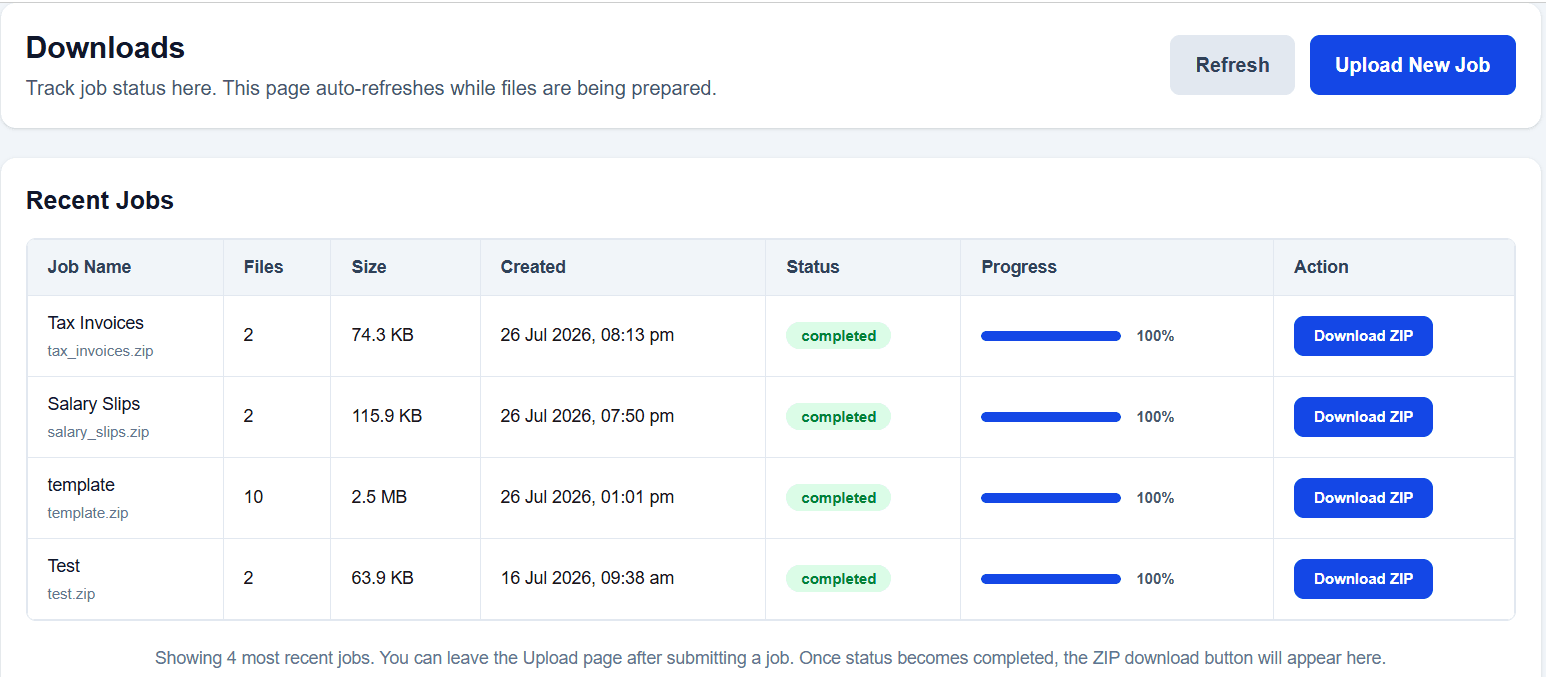
6. Generate and file PDFs
Use invoice numbers in filenames and store the outputs according to your own recordkeeping process.
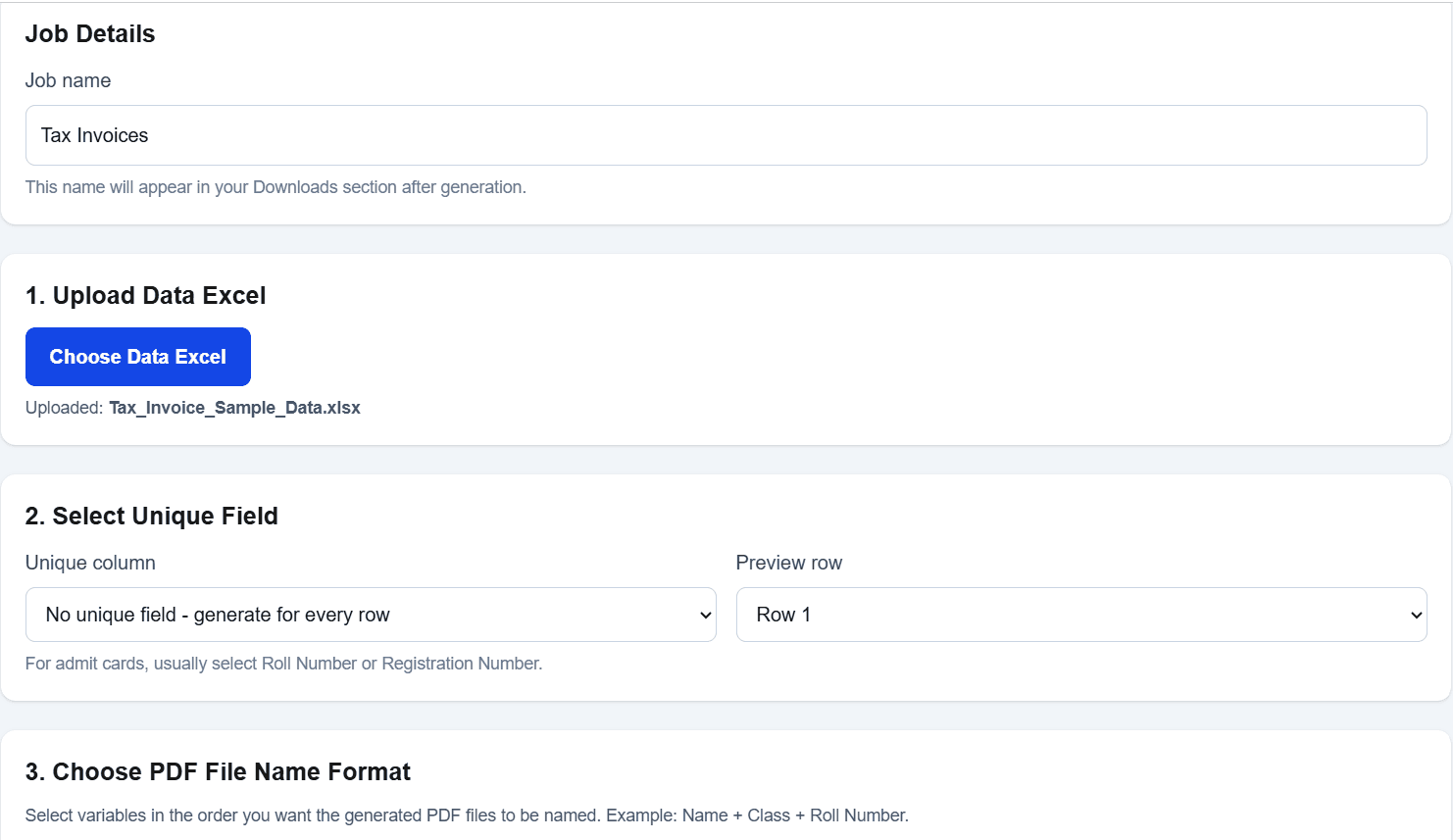
Invoice verification checklist
- ✓ Invoice number is unique and follows the intended sequence.
- ✓ Invoice date and due date are approved.
- ✓ Customer name, address and identifiers are correct.
- ✓ Descriptions, quantities, rates and amounts correspond.
- ✓ Discount, subtotal, tax and grand total were calculated and checked before upload.
- ✓ Bank details and payment terms are current.
- ✓ The tax label shown in the template matches the prepared data.
- ✓ At least one ordinary and one exceptional invoice were previewed.
Worked example: a two-line service invoice
Imagine that the responsible accounting process has approved an invoice for a monthly service and an additional support task. The customer record, invoice date, due date, two service descriptions, quantities, rates, discount and applicable tax values have already been established. The PDF preparation sheet should preserve that approved result in a form the template can read.
Put the first service in the Item1 columns and the second in the Item2 columns. Keep quantity, rate and amount separate. Record the prepared subtotal, discount, taxable value, tax amounts and grand total in clearly labelled columns. If your document displays an amount in words, provide the reviewed wording as another field. Do not place a formula explanation or internal approval note in a cell that will be printed.
During review, calculate the expected relationship between line amounts, subtotal, discount, tax and total independently in the accounting process. Then compare those approved figures with the export row. PDF generation should not be treated as a second calculator or as evidence that the tax treatment is correct.
Preview this invoice alongside a simpler one-line invoice and a record containing the longest customer address. Check that item descriptions wrap without covering amounts, dates use a consistent format and the payment terms remain readable. If a third item would exceed the fixed template, revise the layout and test it before adding the batch.
Keep document data traceable
Retain a clear connection between the approved accounting record, spreadsheet row and generated filename. An invoice number is usually more dependable than a customer name for this purpose. Avoid including unnecessary bank, tax or personal information in filenames. If a value changes after approval, correct it in the source process, prepare a revised export and follow your own cancellation or revision procedure instead of silently replacing a previously issued document.
Mistakes that make bulk invoices difficult to review
Combining several concepts in one column: keep quantity, rate and amount separate so their meaning remains clear.
Mixing tax rates with tax amounts: label both explicitly and place each in the intended template position.
Using a reused invoice number: check uniqueness before generation rather than discovering duplicates in the PDF folder.
Allowing long descriptions to overflow: test realistic long item descriptions and adjust the template before processing the batch.
Assuming PDF output proves correctness: a polished document can still contain incorrect source values; retain an independent approval step.
Troubleshooting invoice generation
The amount format varies
Standardise decimal places and currency presentation in the prepared source or template.
An item line is blank
Check the item column mapping and decide how unused fixed item rows should be displayed.
A customer address overflows
Increase the field area or reduce template typography, then preview the longest address.
The total is disputed
Return to the accounting source and approved calculation. Do not attempt to resolve it in the PDF template.
When this method may not be suitable
Use another system when you need bookkeeping, ledger posting, inventory control, tax determination, filing, payment links, collection tracking or reconciliation. A fixed template may also be unsuitable for invoices with an unpredictable number of complex item lines or layouts that change for every client.
Practical uses
- Approved monthly service invoices
- Standardised branch or franchise invoices
- Event or programme billing documents
- Recurring invoices whose values are prepared externally
- Reissuing an approved invoice as a consistent PDF
Invoice data preparation FAQs
Does DataToPDF calculate invoice totals or GST?
No. Calculate and verify quantities, rates, discounts, subtotal, tax, GST and the final total before upload. DataToPDF uses those prepared values to generate invoice PDFs.
How should multiple invoices be arranged in Excel?
A simple template usually uses one complete invoice record per row. If invoices require several line items, design a stable set of item columns that matches the template and test the maximum layout you intend to support.
Can the invoice template include bank details and payment terms?
Yes. Include approved bank details, due date and terms in the spreadsheet or fixed template text as appropriate, then verify them before generation.
Why does a template variable remain visible in the PDF?
The most common cause is a mismatch between the variable and spreadsheet heading. Compare spelling, spaces, underscores and punctuation in both files.
Does this workflow replace accounting or tax software?
No. It creates documents from prepared data. Accounting records, tax treatment, filings, payment collection and professional review remain outside the PDF-generation workflow.
Related resources
Prepare the records first, then produce the documents
When invoice values have been calculated, checked and approved, DataToPDF can place them into a consistent template and create a separate PDF for each prepared record.