A practical guide for school teams
How to Make Participation Certificates for 100–500 Students
Turn an approved competition list into a clean certificate workflow without retyping every student's name, event and date.
The inter-house competitions are over, but the coordinator's work is not. Students took part in drawing, debate, quiz, dance, athletics and science events. Some participated in one activity; others joined three. Class teachers have sent names in different formats, and the certificate ceremony is approaching.
Making one or two certificates is easy. You open the design, replace a name, check the event, save a PDF and repeat. At 100 certificates, that routine becomes tiring. At 300 or 500, it is difficult to remember which names were corrected, which competition belongs to which student and whether every file was saved with the right details.
The practical solution is to separate the work into two parts: prepare and approve the student data once, then connect those rows to one reusable certificate template. This guide explains how a school team can organise that process without treating a document tool as a substitute for teacher review.

Why a large certificate list becomes difficult
The main challenge is not the certificate background. It is controlling many small pieces of changing information. A teacher may receive “Aarav Sharma” in one sheet, “Aarav sharma” in another and “Aarav S.” in a message. An event may be called “English Debate” by one coordinator and “Inter-House English Debate Competition” by another.
Manual editing also hides progress. A folder containing 247 PDFs does not tell you whether the approved list contained 247 records, whether a student needed two certificates or whether one file was overwritten. A spreadsheet provides a visible checklist: one row represents one certificate that should be produced.
A participation certificate generator can reduce repetitive editing, but it cannot resolve uncertain names, decide who participated or approve award wording. Those decisions belong to the school team before document generation begins.
Start with one approved certificate register
When a school needs to create certificates in bulk, ask activity leads to return information in one agreed format. Combine their submissions into a master register, but keep the original lists until the certificates have been checked. Assign one coordinator to control corrections so that an old spelling is not reintroduced after a teacher has approved a change.
One row per certificate
A student who needs certificates for debate and chess should have two rows, each with its own competition details.
One heading row
Put clear column names in the first row. Avoid merged cells, decorative headings and notes above the data.
One correction owner
Record approved changes in the master sheet instead of correcting individual PDFs later.
One final count
Count certificate rows by event and compare those totals with the lists submitted by teachers.
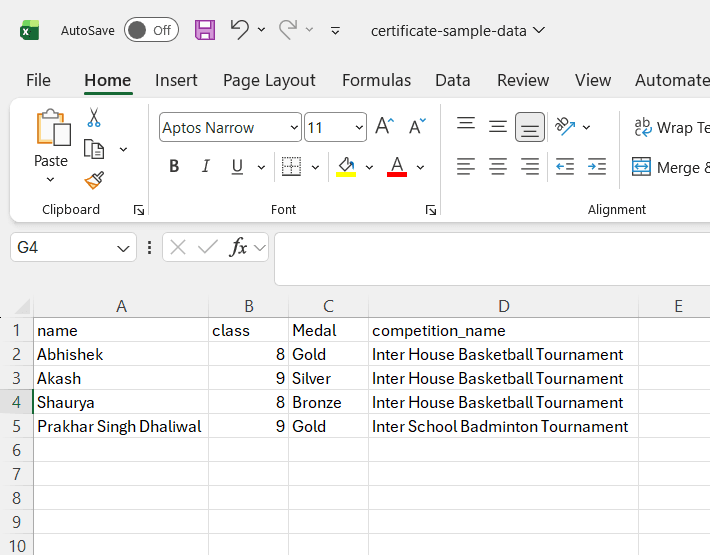
Choose spreadsheet columns that match school records
There is no compulsory set of columns. Use only the fields required by the approved design and the checks your school needs. Keep useful review fields such as class and section even when they do not appear on the final certificate.
Student_NameThe approved spelling to print on the certificate.
Class_SectionA useful review field, even when it is not printed.
Competition_NameThe competition, activity or event entered.
CategoryFor example, Junior, Senior, Individual or Team.
Participation_TypeParticipant, finalist, winner or another approved label.
PositionUse only when a verified rank should appear.
Event_DateThe date shown on the certificate.
Certificate_NumberAn optional reference assigned by the school.
Teacher_In_ChargeThe approved coordinator or activity lead.
Whatever certificate-generation tool a school uses, spreadsheet discipline still matters. A clear register prevents the same student from receiving the wrong competition title or being omitted because their second participation was stored in a separate message.
Match certificate variables to the headings
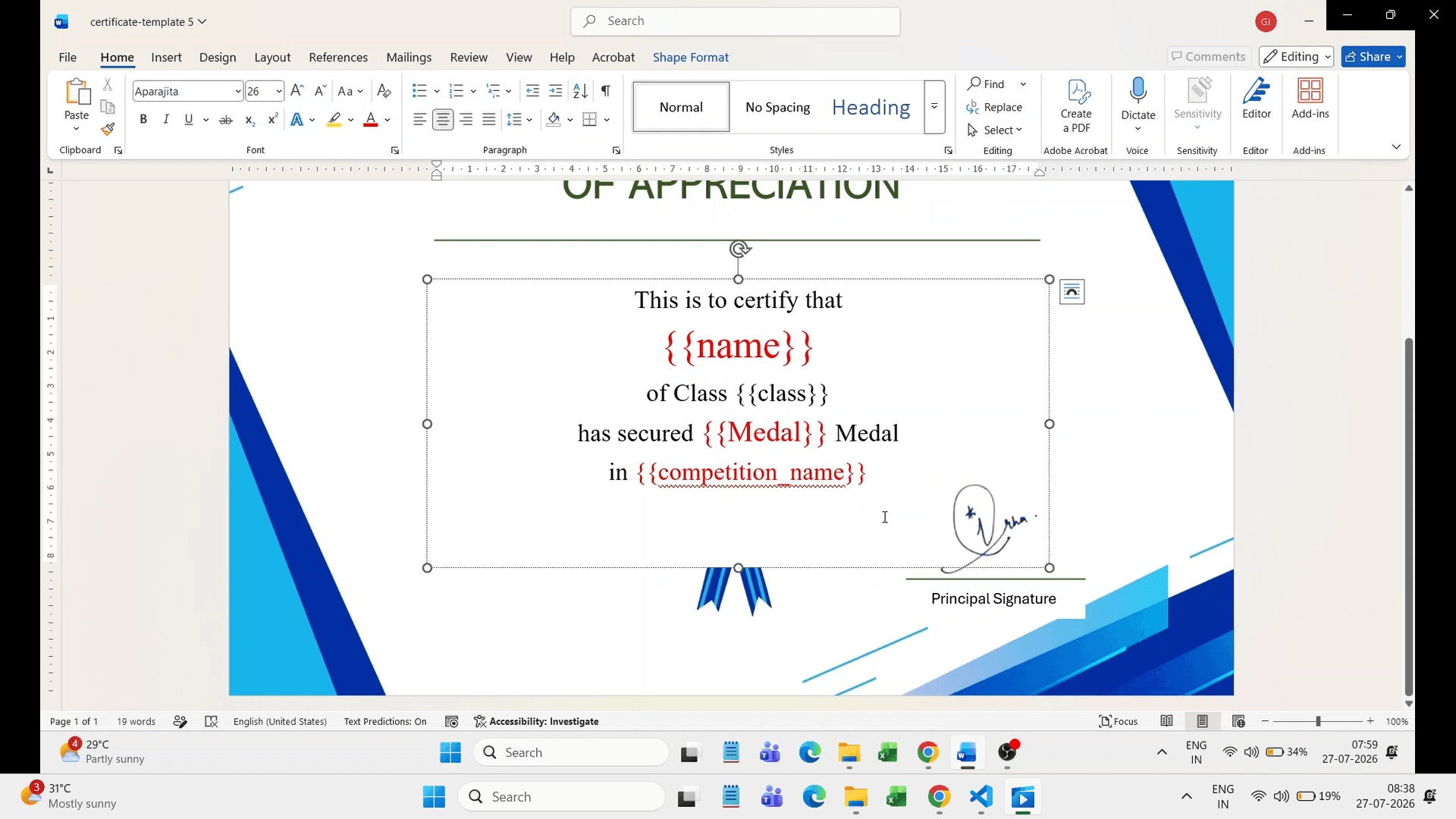
Keep common wording—such as the school name and the phrase “certificate of participation”—as ordinary template text. Add variables only where values change. The variable spelling must match the spreadsheet heading exactly.
{{Student_Name}}Approved student name
{{Competition_Name}}Competition or activity
{{Category}}Age group or event category
{{Participation_Type}}Participant, finalist or winner
{{Event_Date}}Reviewed event date
{{Certificate_Number}}Optional school reference
The same data-to-template method can be used for certificates that show winning positions, but those records need stricter checking than a general participation label. Never infer a rank from the order of rows in a spreadsheet.
A workable process for 100–500 certificates
1. Collect event lists
Ask every competition lead for student names, class details, event name, participation type and approved award information.
2. Standardise the register
Use consistent event names, date formats and participation labels. Create another row whenever one student needs another certificate.
3. Obtain teacher approval
Return the cleaned list to the relevant teachers. Mark changes in the master sheet and record when each event list is approved.
4. Prepare the reusable design
Keep fixed school wording in the template and add variables that match the changing spreadsheet fields.
5. Test difficult records
Preview the longest student name, longest competition title, records with positions and records without optional values.
6. Generate a controlled batch
Use the approved spreadsheet and template to create one PDF per row. Keep the output separate from earlier test files.
7. Reconcile and distribute
Compare output counts with the master register, review samples from every event and distribute through the school’s approved process.
Worked example: six competitions and 286 certificates
Imagine a school has completed debate, quiz, painting, storytelling, chess and athletics competitions. The activity coordinators submit 261 student names. Twenty-five students participated in a second event, so the final requirement is 286 certificates—not 261.
The master sheet therefore contains 286 rows. Each row has a student name, class, competition name, category, participation type and event date. Position is filled only for winners. The coordinator filters the register by competition and sends each subset to the responsible teacher for approval.
Before the full batch, the team previews a long name, a long athletics category, a winning entry and an ordinary participation entry. After generation, it compares the number of files for each event with the filtered row count. This catches omissions that a simple total could hide.
Checks that protect students and teachers
✓ Student names match the school-approved spelling.
✓ Every row represents one certificate that should exist.
✓ Competition names and categories use consistent wording.
✓ Participant, finalist and winner labels are not mixed.
✓ Positions and scores come from an approved result list.
✓ Dates mean the same thing across every event.
✓ Certificate numbers remain unique when they are used.
✓ Long names fit without covering borders or signatures.
✓ No template variable remains visible in a preview.
✓ Output counts match each event’s approved row count.
Common mistakes in competition certificate batches
Using one row per student
This loses the second or third certificate needed by students who joined several competitions. Use one row per certificate.
Correcting the PDF instead of the register
A one-off PDF correction leaves the source wrong. Update the approved spreadsheet so a regenerated batch does not restore the old error.
Putting every phrase in a variable
Keep common wording in the template. Use variables for genuinely changing details so the sheet stays manageable.
Treating blank fields as harmless
An empty position may be correct for participants but wrong for winners. Decide which fields are required for each participation type.
Checking only the first preview
The first record rarely contains the longest name or title. Test unusual and boundary cases before generating the complete set.
Using a participation certificate generator after approval
Once the problem, recipient list and wording have been resolved, DataToPDF can place the prepared spreadsheet values into a reusable Word or Excel certificate template and generate personalised PDF documents. It can also support achievement certificates when the school has already verified the achievement details.
DataToPDF does not decide participation, approve awards, validate qualifications, authenticate certificates or verify signatures. Teachers and authorised coordinators remain responsible for the source values, certificate wording and distribution list.
When this approach may not be suitable
Do not generate the batch when the recipient list is still changing, award decisions are disputed, each certificate needs a completely different design, or school policy requires a separate approval or signing system. Resolve those process questions first. A request to create certificates for a class activity still needs an approved list and wording, even when the class is small.
Frequently asked questions
Can one spreadsheet contain students from different competitions?
Yes. Add a Competition_Name column and any other changing fields, such as Category, Position or Participation_Type. Each row should contain the complete details for one certificate.
Should every student receive the same certificate wording?
Not necessarily. Fixed wording can stay in the template, while a spreadsheet column can hold approved wording that changes by competition or participation type. Review the wording before generating the batch.
How do I handle students who joined more than one event?
Use one row per certificate, not one row per student. If a student participated in three competitions and needs three certificates, create three rows with the appropriate event details.
Does DataToPDF decide which students qualify for certificates?
No. Teachers or authorised coordinators must approve the recipient list and verify names, events, dates, positions and certificate numbers. DataToPDF places the prepared values into the chosen template.
What should I check before generating all 500 certificates?
Preview records with long names, different events, positions, missing optional values and the longest certificate wording. Then compare representative PDFs with the approved school list.
Related resources
Prepare the school list once, then create the certificate batch
Review one row per certificate, test the difficult names and event titles, then use your approved spreadsheet and reusable template to produce the personalised PDFs.