Monthly parent updates for tutors
How Tuition Centres Can Create Monthly Student Progress Reports
It is the last evening of the month at a tuition centre. The tutor has test marks in one workbook, attendance ticks in another sheet and short observations in a notebook. Parents expect a useful update, but writing a separate report for every learner would consume the weekend.
A group of 35 students is small enough that an ERP may feel unnecessary, yet large enough to make monthly copy-and-paste reporting exhausting. Names, subjects and comments change, and a previous month’s remark can remain in a duplicated document.
A student progress report generator can format completed records, but it cannot decide whether a learner has improved or write the final teacher observation. The tutor must bring the final monthly data together before generating PDFs.
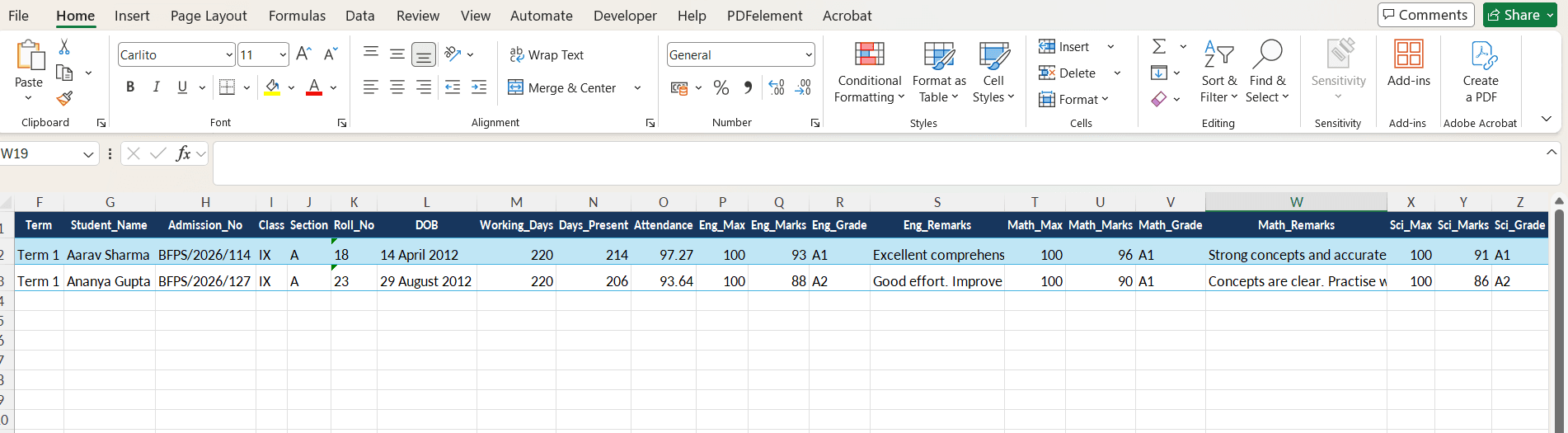
What a student progress report generator cannot decide
Tuition reports often combine a short assessment score, homework completion, attendance and a tutor’s observation. These fields are useful only when their meaning is consistent. A rating of Good should not mean one thing in Mathematics and another in English unless the report explains the scale.
The monthly routine usually involves gathering notes, choosing what parents need to know, typing the same headings into individual files and checking that comments belong to the right learner. The document task competes with lesson planning and parent calls.
The best preparation step is a final monthly sheet: one row per learner, one agreed period, reviewed values and remarks written in respectful, specific language.
Prepare the final spreadsheet first
Use one row per student. Column names can follow the institution's terminology, but every value should already be calculated, written and approved before upload.
| Column | What it should contain |
|---|---|
| student_name | Name confirmed with the centre’s register. |
| report_month | Month and year shown on the report. |
| subject | Subject or programme name. |
| test_score | Final reviewed assessment result. |
| attendance | Prepared attendance value for the month. |
| homework_status | A consistent centre-approved description. |
| strength | A tutor-written observation. |
| focus_area | A practical next-step note written by the tutor. |
| teacher_remark | Final parent-facing wording. |
| tutor_name | Approved tutor or centre name. |
Match columns with template variables
Put matching variables in the reusable Word or Excel report template. For example:
{{student_name}}{{report_month}}{{test_score}}{{attendance}}{{strength}}{{focus_area}}{{teacher_remark}}A variable only places the prepared spreadsheet value. It does not calculate the value or decide what should be written.
A practical generation workflow
1.Choose a reporting period
Define the exact month and which lessons, tests and attendance records it covers.
2.Complete the educational judgment
Review notes and write final strengths, concerns and next steps. DataToPDF will not infer them.
3.Build one parent-ready sheet
Use consistent headings and one row per learner. Remove private working notes that should not appear.
4.Prepare the reusable layout
Place matching variables in a Word or Excel progress-report template with enough room for longer remarks.
5.Preview different learners
Test short and long comments, missed classes and learners with more than one subject.
6.Generate and review
Create separate PDFs, inspect names and remarks, then distribute them using the tutor’s normal communication method.
Example: a monthly report for 42 learners
A fictional learning academy teaches Mathematics and Science to 42 learners. Tutors record weekly scores and observations, but the lead tutor approves one concise monthly remark for each learner.
The coordinator creates a final sheet containing the month, attendance, two reviewed scores, one strength and one focus area. The template uses a simple table and a flexible remark box. Four varied records are tested before the complete batch.
Next month, the centre reuses the structure but prepares a new approved spreadsheet. It does not assume that old remarks remain suitable.
Common mistakes to prevent
Copying raw teaching notes
Convert shorthand into respectful parent-facing wording before upload.
Mixing reporting periods
Clearly define which dates and lessons the report covers.
Letting the tool write remarks
DataToPDF places prepared text; it does not analyse a learner or compose feedback.
Using inconsistent rating scales
Agree the wording and meaning before preparing the sheet.
Overloading the template
Keep the report focused and leave room for realistic comment lengths.
Assuming PDFs are emailed
Download and distribute files through the centre’s existing process.
What DataToPDF does—and does not do
DataToPDF does not calculate marks, percentages, grades, ranks or attendance, and it does not write teacher remarks. Those values must be prepared and verified before upload.
• Tutors prepare and verify scores, attendance, ratings and observations.
• DataToPDF does not analyse progress or write recommendations.
• It does not replace lesson records, an ERP or a parent portal.
• Prepared values are placed into a reusable Word or Excel template.
• The tutor checks every final report and controls distribution.
When this workflow is suitable
A good fit
• A final monthly spreadsheet can be prepared.
• All learners use a consistent report structure.
• The centre needs individual PDF files.
• Tutors retain responsibility for comments.
Choose another system when
• The centre needs live gradebooks or parent logins.
• Performance trends must be calculated automatically.
• Teachers need collaborative marks collection.
• Reports must be emailed automatically.
Frequently asked questions
Can DataToPDF write tutor remarks?
No. The tutor must prepare and approve every final remark before upload.
Can attendance be included?
Yes, when the final attendance value is already present in the spreadsheet.
Can the same template be reused next month?
Yes. Prepare a new verified monthly sheet and confirm that the template still matches its headings.
Is this an ERP for tuition centres?
No. It generates documents from prepared data; it does not manage students, fees, attendance collection or parent accounts.
How many sample reports should be checked?
Check enough varied records to cover long remarks, absences and different subject combinations before generating the batch.
Related resources
Prepare one clear monthly record for each learner
Finish the scores and tutor remarks first, then preview the reusable template with varied records before generating the parent-ready PDFs.