Report-card workflow for small schools
How Small Schools Can Create Report Cards in Bulk from Excel
It is the final week before results are shared in a small school. The class teachers have finished checking marks, the head teacher has approved grades and remarks, and the office has one spreadsheet for each class. The remaining task sounds simple: prepare a report card for every student.
In practice, a school without an ERP may open a Word or Excel report-card file, copy one student’s name and marks, save a PDF, rename it and repeat the sequence. A class of 30 is manageable; six classes turn it into several days of concentrated work. One pasted mark in the wrong subject or one reused filename can create an awkward correction after distribution.
This guide explains how to create student report card in Excel-based workflows without pretending that document generation replaces result preparation. Teachers still calculate and verify every mark, percentage, grade, attendance value and remark. DataToPDF begins only after that final data is ready.
How to create student report cards in Excel without repeated editing
Small schools often divide the work between class teachers and one administrator. Teachers submit marks in different column orders, use slightly different subject names or leave remarks in messages and notebooks. The administrator first has to combine those inputs, then create the files. The bottleneck is not the report-card design; it is maintaining the correct relationship between each student and every field.
The familiar method is to duplicate a template, replace the identity fields, paste marks subject by subject, update totals and remarks, export the PDF and choose a filename. Interruptions make this risky. The previous student’s grade can remain in place, a long name can wrap over the border, or two students can receive files with the same roll number.
A safer process separates academic decisions from document production. Teachers complete the result work first. One responsible person standardises the spreadsheet and approves the template. Only then should the school generate report cards.
Prepare the final spreadsheet first
Use one row per student. Column names can follow the institution's terminology, but every value should already be calculated, written and approved before upload.
| Column | What it should contain |
|---|---|
| student_name | Approved spelling from the admission register. |
| class | The class label used consistently across the batch. |
| section | Section or division, where applicable. |
| roll_number | Reviewed roll number used for identification or filenames. |
| maths_marks | Final Maths value already calculated and checked. |
| english_marks | Final English value in the agreed format. |
| percentage | A completed value; DataToPDF does not calculate it. |
| grade | The school-approved grade. |
| attendance | The final attendance figure or display text. |
| teacher_remark | The final remark written and approved by the teacher. |
Match columns with template variables
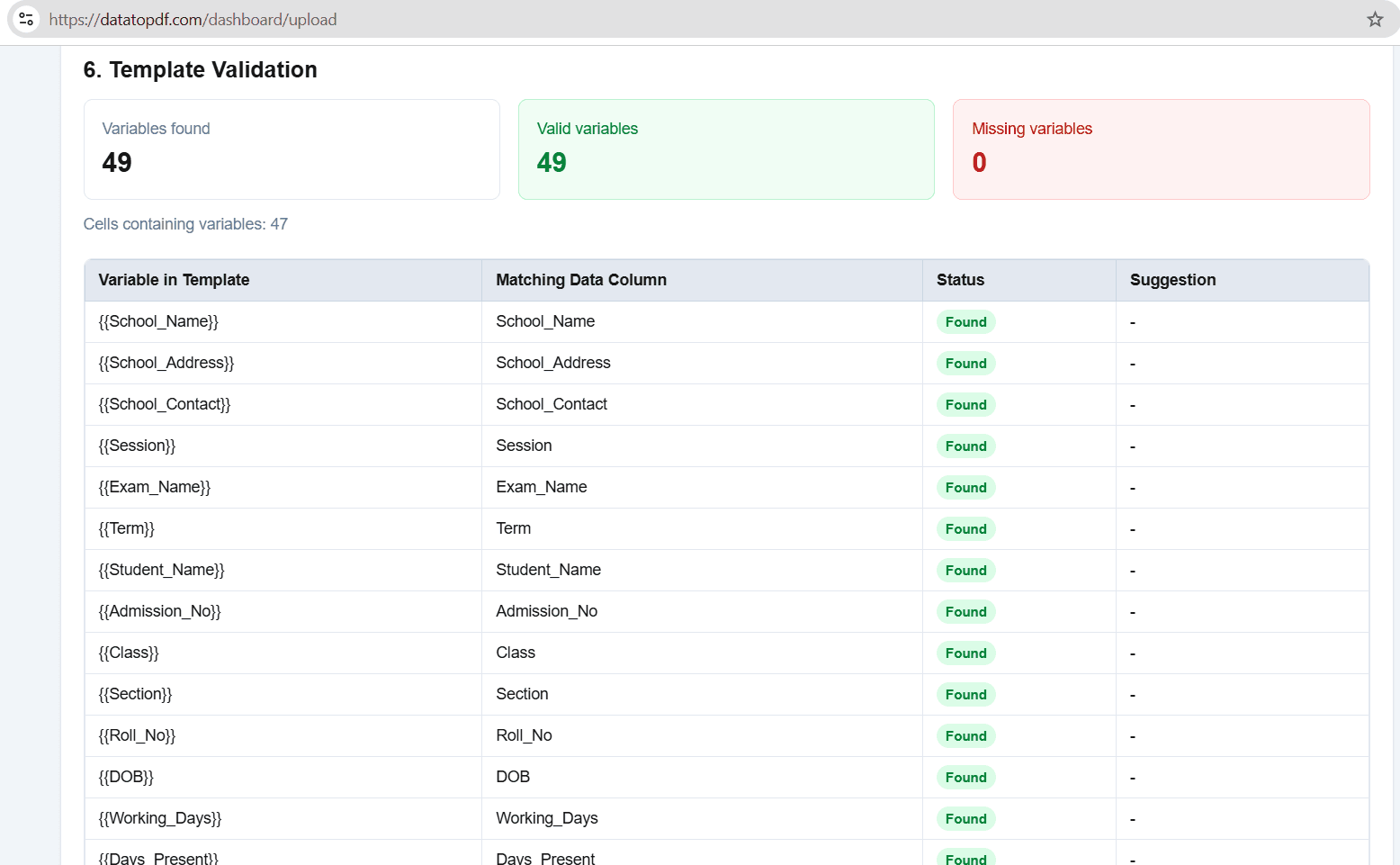
Put matching variables in the reusable Word or Excel report template. For example:
{{student_name}}{{class}}{{section}}{{roll_number}}{{maths_marks}}{{grade}}{{teacher_remark}}A variable only places the prepared spreadsheet value. It does not calculate the value or decide what should be written.
A practical generation workflow
1.Collect final class records
Ask teachers for completed files using one agreed column structure. Resolve blanks, duplicate roll numbers and conflicting subject labels before combining anything.
2.Verify calculations outside DataToPDF
Check totals, percentages, grades, results and attendance using the school’s normal academic process. Lock or preserve an approved copy so later edits are traceable.
3.Prepare one reusable template
Use a Word or Excel report-card template and replace changing fields with variables matching the spreadsheet headings. Keep logos, borders, school details and signature areas as fixed template content.
4.Upload the prepared files
Upload the reviewed Excel or CSV data and the corresponding template. Inspect the imported column names and correct mismatches in the source or template.
5.Test several kinds of records
Preview a short name, a long name, high and low marks, a longer remark and any special result status. This catches layout problems that one convenient sample may hide.
6.Generate and review the class batch
Generate separate PDFs, use student-specific filename fields where appropriate, inspect a sample from the beginning, middle and end, and then download the files together.
Example: a six-class local school
A fictional school has 186 students from Classes VI to VIII. Teachers submit verified marks using the same workbook format. The result coordinator combines the approved rows, checks that roll numbers are unique and confirms that every remark is final.
The school uses one approved report-card template for these classes. It tests students with long names, absent-subject notation and multi-line remarks. After checking the previews, the coordinator generates the class-wise batches and reviews filenames before sharing them through the school’s normal process.
The school has not outsourced academic judgment. It has simply stopped manually rebuilding the same document 186 times.
Common mistakes to prevent
Combining unapproved teacher files
A polished PDF cannot correct unfinished marks or inconsistent grading. Use only final, authorised data.
Different headings for the same subject
Maths, Mathematics and Math are different variable names. Standardise headings before upload.
Writing remarks during generation
Remarks should be completed in the spreadsheet first, not improvised while reviewing PDFs.
Testing only one student
Names, remarks and result statuses vary. Test edge cases before the full batch.
Weak filenames
A folder of report.pdf and report-1.pdf is hard to distribute. Prepare unique student identifiers.
Treating generation as verification
The output reflects the supplied values. It does not prove that marks or grades are correct.
What DataToPDF does—and does not do
DataToPDF does not calculate marks, percentages, grades, ranks or attendance, and it does not write teacher remarks. Those values must be prepared and verified before upload.
• Users calculate and verify marks, totals, percentages, grades, GPA, ranks and attendance before upload.
• Teachers or authorised staff write and approve remarks; DataToPDF does not compose them.
• DataToPDF places prepared spreadsheet values into a Word or Excel template and generates personalised PDF files.
• It does not collect marks from teachers, analyse performance, replace an ERP or email reports automatically.
• The school remains responsible for checking final PDFs and distributing them appropriately.
When this workflow is suitable
A good fit
• Final student data already exists in Excel or CSV.
• Many students use the same approved report-card layout.
• The school needs separate, consistently named PDFs.
• Staff can review samples and the final output.
Choose another system when
• The school needs marks calculation, grade rules or rank calculation.
• Teachers need to enter marks directly into a shared school system.
• Parents require a portal, automatic email delivery or analytics.
• Different students require completely unrelated layouts in one batch.
Frequently asked questions
Can DataToPDF calculate totals or grades?
No. The school must calculate and verify totals, percentages, grades, GPA, ranks and related result values before upload.
Can a small school use a Word report-card template?
Yes. A prepared Word or Excel template can contain variables matching the spreadsheet columns.
How should teacher remarks be handled?
The teacher should write and approve the final remark in the spreadsheet. DataToPDF places that prepared text into the matching variable.
Can each PDF include the student name in its filename?
The product supports student-specific data in filenames. Choose stable fields such as roll number and student name, then check the output names.
Does this replace a school ERP?
No. It is a document-generation workflow for prepared data, not a student-information, marks-entry or parent-communication system.
Related resources
Prepare the class data before generating the files
Once marks, grades and remarks are final, test the approved report-card template with a few varied student rows before producing the full class batch.