A client-data handoff and review workflow
How Print Shops Can Prepare Personalised PDF Batches from Client Excel Files
A client sends approved certificate artwork and a spreadsheet with 350 names. Two hours later, a second file arrives with corrected spellings, added rows and no version label. The design is ready, but the production risk now sits in the handoff.
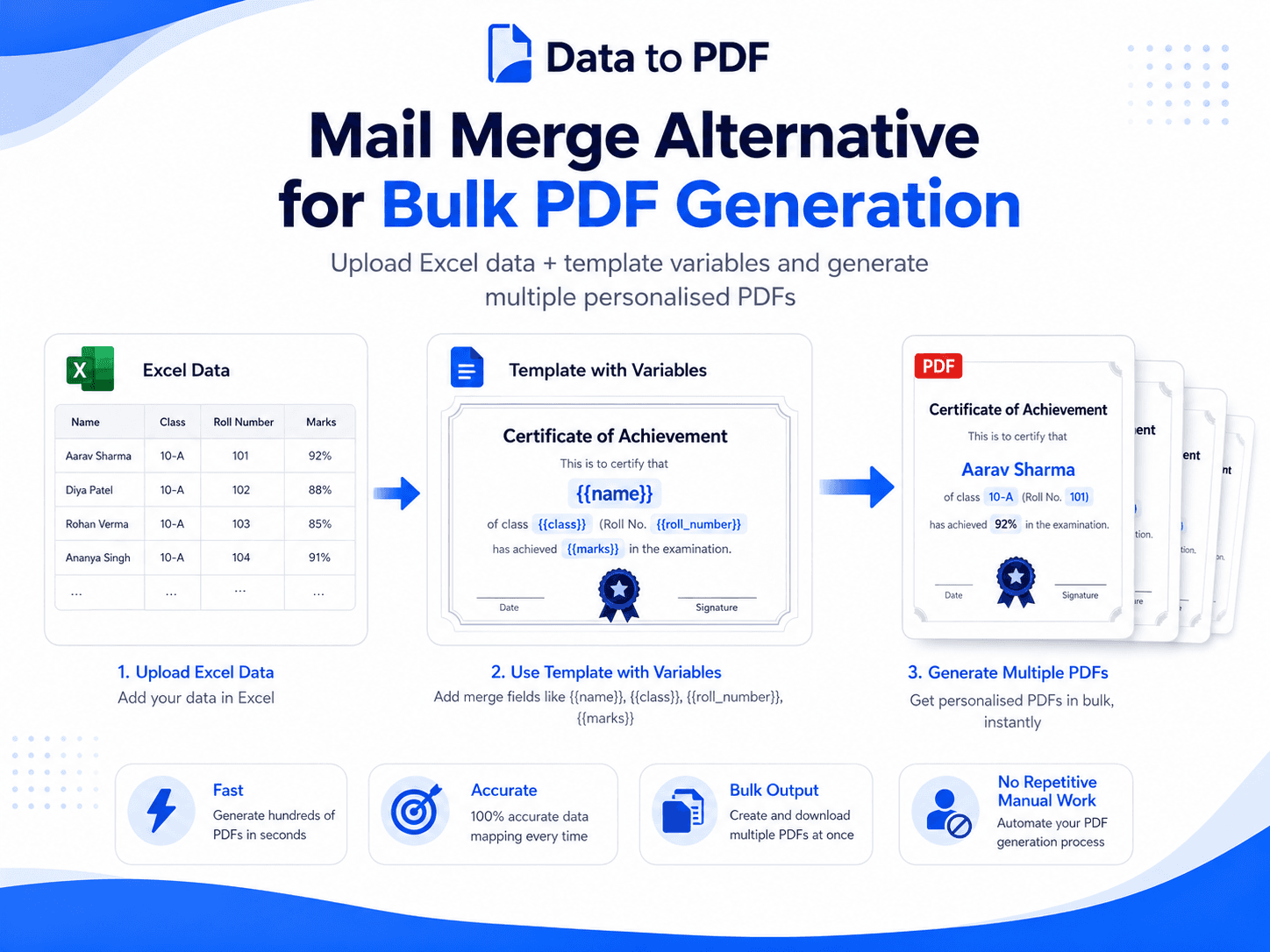
Personalised PDF batches for print shops need more than a merge button. The shop needs a frozen brief, one approved record per row, matching template variables, representative proofs and a clear correction trail. That process also suits freelance designers and document service providers preparing separate files for a client.
DataToPDF can handle the focused step of placing prepared Excel or CSV values into a reusable Word or Excel template. The client and service provider remain responsible for data approval, artwork, prepress, printing and final delivery.
This is useful when the job is to prepare personalised PDFs from client Excel records without retyping every name or title. Treat it as variable data PDF preparation, not as automatic approval or press automation.
What the client should approve before generation
Agree on the field list before accepting the final spreadsheet. A simple handoff table makes each column's purpose visible and prevents the shop from guessing what should appear in the document.
| Example column | Approval question |
|---|---|
| Job ID | A stable client or production reference for the batch. |
| Name | The client-approved spelling for the personalised document. |
| Class | A group, batch or class label when the job is for a school. |
| Roll No | A unique record value that can also support filenames. |
| Marks | A prepared display value; the document step does not calculate it. |
| Certificate Title | The exact approved recognition or completion title. |
A bulk PDF workflow for designers and print teams
Freeze the client brief
Confirm the document type, quantity, approved design, required fields, filename pattern, sample approval contact and correction process. A changing brief makes every later check unreliable.
Receive a clean data file
Ask for one header row and one approved record per row. Remove notes, totals, duplicate headers and unused columns from the generation copy without altering the client's source workbook.
Match fields to template variables
Place variables such as {{Name}}, {{Class}}, {{Roll No}}, {{Marks}} and {{Certificate Title}} where the values should change. Keep approved logos, borders, labels and common wording fixed in the template.
Test difficult records
Preview the longest name, the shortest value, an approved blank and any unusually long title. Check line wrapping, alignment, page boundaries and whether the field still fits the client's design.
Send a representative approval set
Give the client a small sample that covers different layouts and values. Record approval of both the data placement and the visible design before generating the complete batch.
Generate and complete pre-production checks
Create the approved PDFs, verify filenames and sample records, then apply the shop's normal prepress, print or digital-delivery checks. PDF generation does not replace those production controls.
Mistakes a controlled batch helps avoid
Generating from an older spreadsheet after the client sends corrections.
Leaving one recipient's name or title in the next document after manual editing.
Discovering text overflow only after the complete batch has been prepared.
Using duplicate filenames that make corrections and reprints difficult to trace.
Pre-production checklist
- Client approval covers both the artwork and the final spreadsheet.
- Every variable has an exact matching Excel heading.
- Names, identifiers and document titles are treated as text where needed.
- Long values have been previewed in the actual template.
- The filename pattern is unique and useful for corrections or reprints.
- A documented person owns client queries, approval and release.
What this workflow does not replace
DataToPDF is not a press controller or specialist prepress suite. It does not add bleed, impose pages, calibrate colour, validate fonts, verify postal data or approve whether a recipient is entitled to a document.
Keep the shop's established artwork, proofing and output checks. Use the spreadsheet-to-template workflow when the missing step is creating separate personalised PDFs from already prepared values.
Choose the right template and supporting guide
For the generic Excel-to-template method and a comparison with Word merge, read the mail merge alternative guide. Then use the commercial page that matches the client's document rather than one generic workflow for every job.
Certificate batches
Use approved names, titles and dates with a certificate template.
Admit-card batches
Map student and exam fields to an approved card design.
Report-card batches
Use school-verified results and remarks in a reusable layout.
Browse all available starting files in the DataToPDF template library.
Frequently asked questions
Can a print shop create one PDF for every row in client Excel data?
Yes. With one approved record per row and matching variables in a Word or Excel template, DataToPDF can create a separate personalised PDF for each row.
Can the client keep an existing Word or Excel design?
Yes. Fixed branding and layout can remain in the reusable template while variables mark the fields that change. The print shop should still test the design with long, short and blank approved values.
Does DataToPDF clean or approve client data?
No. The client and service provider must agree on the final spreadsheet, spelling, document entitlement and required fields before upload. DataToPDF places the supplied values; it does not verify them.
Is this the same as variable data printing software?
It is a focused spreadsheet-to-template PDF workflow. It does not control a printing press, impose artwork, add bleed automatically or replace specialist prepress and variable-data-printing systems.
How should corrections and reprints be handled?
Record the corrected row and a stable job or record ID, confirm client approval, regenerate only the required document batch and repeat the same visual and data checks before printing or delivery.
Test the client-approved template with varied records
Start with a representative sample, confirm the variables and review the PDFs before preparing the complete client batch.