A school document batch checklist
How School Admins Can Prepare Excel Data for Certificates, Admit Cards and Result PDFs
The exam team sends one spreadsheet, the activity coordinator sends another, and the office keeps the official student register. The names almost match, but one sheet uses Class 8A, another uses VIII-A, and a third has last term's roll numbers. That is where a certificate, admit-card or result batch starts going wrong—before anyone creates a PDF.
To prepare school documents from Excel, first decide which record is authoritative, then make a clean file for one approved batch. Use consistent headings, match them to template variables and preview varied rows. The same discipline supports three different outputs without pretending they share the same fields or approval process.
This guide is for school administrators, examination coordinators and activity teams who already have the source facts and need a controlled route to individual PDFs. It is not a marks calculator, eligibility checker or replacement for a school ERP.
Start with a field dictionary, not one giant template
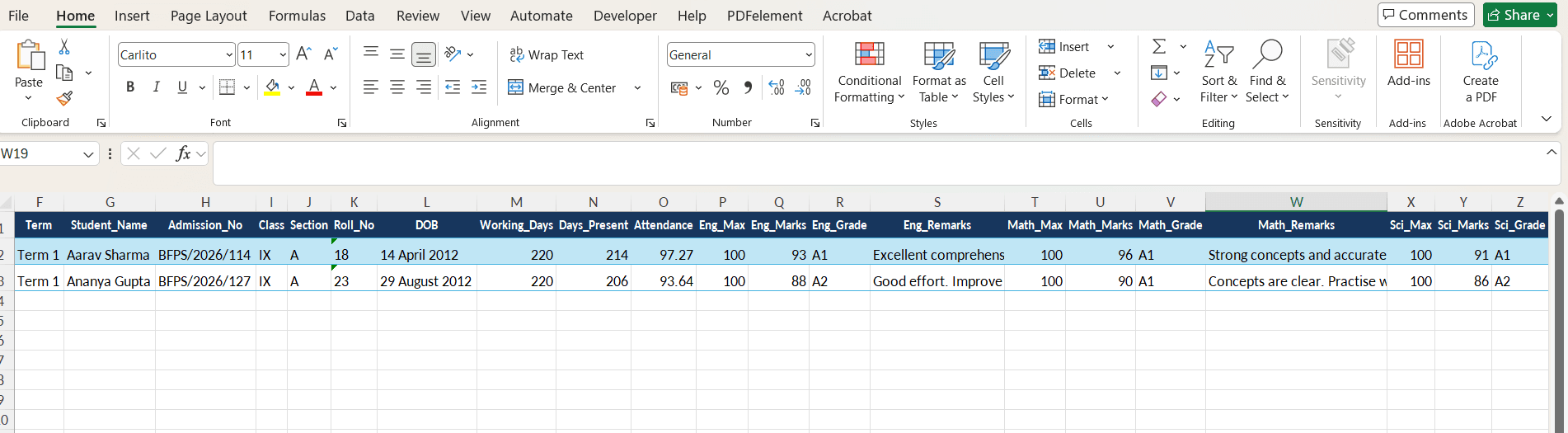
A shared student identity does not make certificates, admit cards and results the same document. List the fields required by each approved layout. A compact field dictionary helps the admin team see which values are common and which require a different owner or review.
| Batch | Example Excel columns | Matching variables |
|---|---|---|
| Every batch | Name, Class, Roll No, Batch ID | {{Name}}, {{Class}}, {{Roll No}}, {{Batch ID}} |
| Certificates | Certificate Title, Achievement, Issue Date | {{Certificate Title}}, {{Achievement}}, {{Issue Date}} |
| Admit cards | Exam Name, Exam Date, Reporting Time, Centre | {{Exam Name}}, {{Exam Date}}, {{Reporting Time}}, {{Centre}} |
| Result PDFs | Marks, Total, Grade, Teacher Remark | {{Marks}}, {{Total}}, {{Grade}}, {{Teacher Remark}} |
These are fictional examples. Use the school's approved field names and include only information that belongs on the document.
A six-step certificate, admit card and result workflow
Confirm who owns each value
The examination team should approve marks and grades, the activity coordinator should approve certificate eligibility and titles, and the office should confirm names, classes and roll numbers. Do not ask the PDF step to resolve disagreements in the source records.
Prepare one clean file for one document batch
A working workbook may contain many sheets and notes. Make the upload file simpler: one header row, one approved record per row and only the columns needed by the chosen template.
Standardise headings and display values
Choose one spelling for fields such as Roll No, Certificate Title and Exam Date. Enter the exact text that should appear in the PDF, including approved date formats and labels for absent or not-applicable values.
Match the correct template
Keep fixed school branding and labels in the Word or Excel template. Put variables only where values change. A certificate template should not receive result-only columns, and an admit-card template should not inherit last term's exam details.
Preview varied records
Test a long name, the highest roll number, a row with an approved blank, a long certificate title and a long teacher remark. Check placement, wrapping and page breaks before creating the complete batch.
Generate, review and release
After the variables match, generate the PDFs and review the output against the approved source. Keep distribution with the authorised school team; document generation does not decide who should receive a result or certificate.
Mistakes this checklist helps avoid
- Using a combined sheet that contains old classes, hidden rows or draft records.
- Changing a heading in Excel without changing the matching template variable.
- Reusing last term's fixed exam name, date or signatory text in the template.
- Treating an empty cell as self-explanatory instead of entering an approved display value.
- Generating the full batch before previewing long and unusual records.
- Assuming PDF generation verifies marks, eligibility, approvals or school policy.
When DataToPDF fits the job
Use DataToPDF when the school already has verified values in Excel or CSV and an approved Word or Excel design. The tool can place each row's values into matching variables and create a personalised PDF for that record.
For recurring batches, this gives the admin team a controlled way to prepare bulk school PDFs from Excel without combining unrelated approvals in one document job.
It does not calculate marks, assign grades, decide certificate eligibility, approve exam access, verify identities or manage the school's underlying records. Those responsibilities remain with the school.
If the problem is broader record management across admissions, attendance, fees and communication, read thefocused document workflow versus ERP guide.
Continue with the correct document workflow
Bulk Certificate Generator
Use approved recipient and certificate data with a reusable Word template.
Bulk Admit Card Generator
Prepare student and exam fields for individual admit-card PDFs.
Report Card Generator
Turn school-verified marks and remarks into report-card PDFs.
You can also browse the template library or read the detailed guide to preparing admit cards from Excel.
Frequently asked questions
Should certificates, admit cards and results use one Excel sheet?
Keep one controlled source workbook if that suits the school, but prepare a separate clean upload file for each document batch. Each file should contain only the rows and columns needed by its approved template.
Can the same student appear in more than one document batch?
Yes. A student may need an admit card, a result PDF and a certificate at different times. Copy only the approved values required for each batch and review them against the relevant school record.
Does DataToPDF calculate marks, grades or certificate eligibility?
No. The school must calculate and approve marks, grades, results, eligibility, certificate titles and all other source values before upload. DataToPDF places prepared values into the template.
Do Excel headings have to match template variables?
Yes. A heading such as Roll No should have a matching variable such as {{Roll No}} in the template. Consistent spelling, spaces and capitalisation make the mapping easier to review.
When should a school use a full ERP instead?
Consider an ERP when the school needs a connected system for admissions, attendance, fees, timetables, communication and long-term academic records. A document-generation workflow is narrower and does not replace those functions.
Test one reviewed batch before the full school cycle
Start with a clean upload file and a few varied records. Confirm the variable mapping and PDF layout, then generate the approved batch for review.